

Quick start
Authors: Roman Savochenko, Maxim Lysenko
Translated: Maxim Lysenko
State: Publication
Introduction
An open system OpenSCADA is extremely modular, flexible and multi-functional SCADA-system. As a consequence of this the first contact with OpenSCADA can be quite complex because of the small chance of matching the previous experience of the user or complete lack of it with the methods of work in OpenSCADA. However, this is largely just a first impression, because the whole power of OpenSCADA is in the palm of the user, because of the abundance of which the user can get confused, and he may require considerable efforts to select the functions needed to solve his tasks.
For this reason, and to visualize the general concept of work in OpenSCADA this document is created. The document in the concise and understandable form shows the path from start of OpenSCADA to creation of the user interface elements on real examples. In addition, the document contains the chapter with recipes for the configuration, implementation, and typical problems of the user.
The document does not contain the detailed description of the concept and a deep dive into the details of OpenSCADA, and provides links to the appropriate OpenSCADA documents, containing such information.
Document description is synchronized with the implementation of the examples on the demonstration database (DB), AGLKS model. Consequently, the user must obtain the distribution kit of OpenSCADA with this database for illustrative study and testing the examples.
1. Terms, definitions and abbreviations
The automated workplace - Usually consists of a system unit of the computer system, display, mouse, sometimes with the keyboard, and other peripheral equipment that is used for visual representation of technological process data and making the control actions on the TP.
Lock (term) – notional boundary of technological parameter, in the case of its getting over the preset algorithm steps to prevent the accident are made. In some modes of TP (start) in accordance with the regulation it may be necessary to disable the lock (unlocking).
Unlocking (term) – process of the lock disabling for the duration of the TP working in the modes for which the regulation provides this operation. Attention, unlocking the technological parameters is strict accountable operation and the must be made by operational staff in the proper order.
Quittance (term) – the process of confirming the fact that operational staff drew attention to the failures of TP working. This process usually entails the adoption of measures by the operator to correct violations and pressing the appropriate button to stop the alarm.
PLC (abbreviation) – Industrial PLC. Microprocessor-based electronic device to which via computer-process interface (CPI) the signal of processing parameters are going. PLC acts the role of the direct data acquisition, processing and making the control actions by means of algorithms of automatic control. In addition the PLC provides data for the visualization of TP, and receives data of the manual intervention from the "top level" system.
Alarm (term) – process of notifying the operational staff of the violation of process or work of the automation equipment. Way of signaling may be of different types of impacts on human senses in order to attract attention. Often it is involved the following types of alarms:
- Light alarm – usually is done by changing the color of the graphic object (blinking) to emerging events and by the setting of static accidents colors (red and yellow) for acknowledged events.
- Sound – is made by an audible signal at the time of occurrence of the event. Type of alarm can be monotonous and the synthesized voice message with information about the violation.
TP (abbreviation) - Technological process. The whole complex of technological equipment of the production process.
CPI (abbreviation) – Computer-Process Interface. A number of devices or modules of PLC, to which are directly connected the signals from the sensors of TP for subsequent conversion from analog to digital form and vice versa. The transformation is carried out with aim of further processing of values of technological parameters in the PLC.
Alarm setpoint (term) - conventional boundary of the value of technological parameter, the overcoming of which is considered ad the emergency situation. Usually the following boundaries are provided:
- The upper and lower emergency boundaries – boundaries of the emergency values of technological parameter.
- The upper and lower warning boundaries – boundaries of the prevention, regulation boundaries, of the violation of the technological parameter of the working range.
- Failure - sign of parameter getting over the hardware boundaries of technological equipment. Usually it characterizes the sensor failure, breakage of the communication channel with the sensor or PLC.
SCADA (abbreviation) - Supervisory Control And Data Acquisition. The software that performs complex tasks of data acquisition of TP, their archiving and presentation, as well as the making the control actions by the operator in manual mode.
2. Installation and start
The installation of distribution kit of OpenSCADA can be done in two ways. The first and the easiest way is to get packages for your distribution of the Linux operating system. The second - to build the OpenSCADA system from sources. In general, the installation procedure depends strongly on the used Linux distribution and to exhaustively describe it in this guide it does not seem possible! Therefore, you may need a deep familiarity with the mechanisms of software installation for the selected Linux distribution in its documentation.
If user does not have deep enough knowledge and skills in the chosen distribution of Linux, it is strongly recommended to choose the Linux distribution by the criterion of existence for it the packages of OpenSCADA in the repositories of the distribution, which will ensure an easy and problem-free installation!
If the user can not only install the OpenSCADA, but also the Linux distribution, for the first time he can use the "live" distribution of Linux, with the installed and ready for work or study demonstration of OpenSCADA. Currently are available "live" builds on the basis of distribution ALTLinux in the form of CD and Flash-images on the page:  http://oscada.org/en/download.
Attention! The dynamic model of the compressor station, 6 gas compressors, which lies at the heart of the demonstration database requires significant computing resources, and more specifically the processor with a frequency greater than 1 GHz. These resources are needed specifically for the dynamic model and are not a common indicator resource intensity the program in end tasks!
2.1. Installing OpenSCADA from packages
Installing OpenSCADA from packages, in its turn, can be made by two methods. The first - the simplest one, when packages of OpenSCADA are already present in the official or additional repositories of the distribution of used Linux, and installation of them - the question of running the typical program of packages' management followed by selection of the OpenSCADA packages. The second is when the packages of OpenSCADA are got and installed manually.
At the moment the system OpenSCADA packages can be found in the repositories of such distributions OS Linux: ALTLinux and distributions based on package base of Fedora.
To check for OpenSCADA packages presence in the repositories of the used Linux distribution, as well as to download packages of OpenSCADA for manual installation you can download at the official OpenSCADA site (http://oscada.org/en/zagruzka).
Description of the installation from the repository of the selected Linux distribution we'll omit and refer the reader to the documentation of the appropriate distribution.
For the manually installation of OpenSCADA packages lets download them from the official website or from the other source. You can download packages of two types.
The first type is represented by a set of nine packages:
- openscada - package with all files necessary to start OpenSCADA, including all modules;
- openscada-LibDB.Main - main OpenSCADA libraries for DAQ and other into SQLite DB;
- openscada-LibDB.VCA - visual components libraries into SQLite DB;
- openscada-Model.AGLKS - model "AGLKS" data bases and config (Demo: EN,RU,UK);
- openscada-Model.Boiler - model "Boiler" data bases and config (only Russian);
- openscada-docEN - documentation on the OpenSCADA system - English;
- openscada-docRU - documentation on the OpenSCADA system - Russian;
- openscada-docUK - documentation on the OpenSCADA system - Ukrainian;
- openscada-devel - development packages for the creation of the separate modules to the OpenSCADA system.
The second type is represented by the set of about fifty packages with separation of OpenSCADA modules in separate packages:
- openscada-core - contains the OpenSCADA core, basic configuration and launching(starting) files;
- openscada-DB.* - "DB" subsystem's modules;
- openscada-DAQ.* - "Data acquisition" subsystem's modules;
- openscada-Archive.* - "Archives" subsystem's modules;
- openscada-Transport.* - "Transports" subsystem's modules;
- openscada-Protocol.* - "Transport protocols" subsystem's modules;
- openscada-UI.* - "User interfaces" subsystem's modules;
- openscada-Special.* - "Specials" subsystem's modules;
- openscada-LibDB.Main - main OpenSCADA libraries for DAQ and other into SQLite DB;
- openscada-LibDB.VCA - visual components libraries into SQLite DB;
- openscada-Model.AGLKS - model "AGLKS" data bases and config (Demo: EN,RU,UK);
- openscada-Model.Boiler - model "Boiler" data bases and config (only Russian);
- openscada-docEN - documentation on the OpenSCADA system - English;
- openscada-docRU - documentation on the OpenSCADA system - Russian;
- openscada-docUK - documentation on the OpenSCADA system - Ukrainian;
- openscada-devel - development packages for the creation of the separate modules to the OpenSCADA system.
- openscada - virtual package containing dependencies for installing the typical configuration of the OpenSCADA;
- openscada-plc - virtual package containing dependencies for installing the typical configuration of the OpenSCADA as PLC;
- openscada-server - virtual package containing dependencies for installing the typical configuration of OpenSCADA as SCADA-server;
- openscada-visStation - virtual package containing dependencies for installing the typical configuration of OpenSCADA as visual SCADA-station.
The first type of the packages' set is provided for easy, manual installation, because it contains only nine packages. The second type is designed to be placed in a repository of Linux distribution and for the following installation of them using the package manager, which made auto-dependency resolution. The second type of the packages' set allows you to install only the required components of OpenSCADA, thereby optimizing the working environment, which is do not allowed by the packages of the first type.
If you are installing from the repository you should only select the package "openscada-Model.AGLKS". Everything else, according to the dependencies, will be selected and installed automatically.
Manual installation of RPM-packages of the first type can be made by the following command, after changing the working directory to the directory with the package:
# rpm -i openscada-LibDB.Main-0.7.1-alt1.noarch.rpm openscada-LibDB.VCA-0.7.1-alt1.noarch.rpm openscada-Model.AGLKS-0.7.1-alt1.i586.rpm openscada-0.7.1-alt1.i586.rpm
Manual installation of DEB-packages of the first type is made by the following command, previously having changed the working directory to the directory with the package:
# dpkg -i openscada-libdb.main-0.7.1-1_all.deb openscada-libdb.vca-0.7.1-1_all.deb openscada-model.aglks-0.7.1-1_all.deb openscada_0.7.1-1_i386.deb
In the process of implementation it may cause bugs related to missing dependencies. The manual installation of the packages means that you'll solve them manually, like installing packages of OpenSCADA, or via the package manager of Linux distribution. To familiarize with the process of installing software in RPM-package you can by the click on: http://skif.bas-net.by/bsuir/admin/node51.html.
2.2. Installation from sources
If you can not get packages of OpenSCADA for the selected distribution, it remains the only ine option of OpenSCADA building from the sources. The building process of OpenSCADA is described in details in the guide on the following link http://wiki.oscada.org/HomePageEn/Doc/BuildFromSource. However, it must be borne in mind that if you managed to build OpenSCADA from sources, then this document is not for you, and you probably can easily master the basic documents of OpenSCADA (http://wiki.oscada.org/HomePageEn/Doc/ProgrammManual ).
This chapter is given here for completeness and integrity of the consideration of the question, because the required qualification level of the user for this chapter is much higher than the level of the document at whole!
3. Initial configuration and start
After proper installation of the OpenSCADA with demo database no pre-configuration is required. If you want to perform a particular configuration, which differs from the base, then use the document of description the OpenSCADA program on the link: http://wiki.oscada.org/HomePageEn/Doc/ProgrammManual/part4.
Attention! The demonstration of OpenSCADA based on the demo database is not the same as that is usually provided by the commercial software vendors to demonstrate the possibilities, but to exclude or to complicate the normal operations by limiting the functions. Demonstration of OpenSCADA is fully-functional system that provides examples of implementation and configuration of various components. Based on the demo database of OpenSCADA one can easily create own projects, using the given resources.
To execute the OpenSCADA with demo database you can from the menu of the desktop environment in the "Graphics" section, "Demo of open SCADA system" with the characteristic icon (Fig. 3.1).
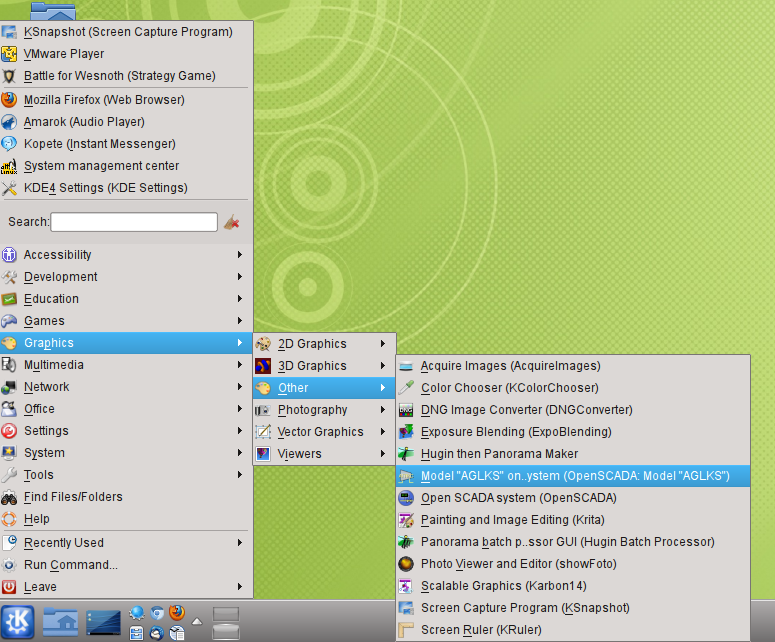
Fig. 3.1. Menu item of the desktop environment to start the demonstration of OpenSCADA.
Start also can be done from the console by the command:
# openscada_demo
Attention! When you start OpenSCADA from the console with the command "# openscada" , is launched without any configuration, as a result of the request user and password to login. By default, the system provides OpenSCADA super user "root" (password "openscada") and unprivileged "user" (password "user"), which have no relation to the users of the operating system. Starting OpenSCADA so it makes sense only on the OS administrator ("root") or in daemon mode.
After start we'll get the window of graphical configurator of OpenSCADA system - QTCfg (Fig.3.2) with the opened root page. Demo database specifically set up so that the first to appear when you start it would be the configurator's window. You can then open the window for creating graphical user interfaces, as well as run the project of user interface for execution.
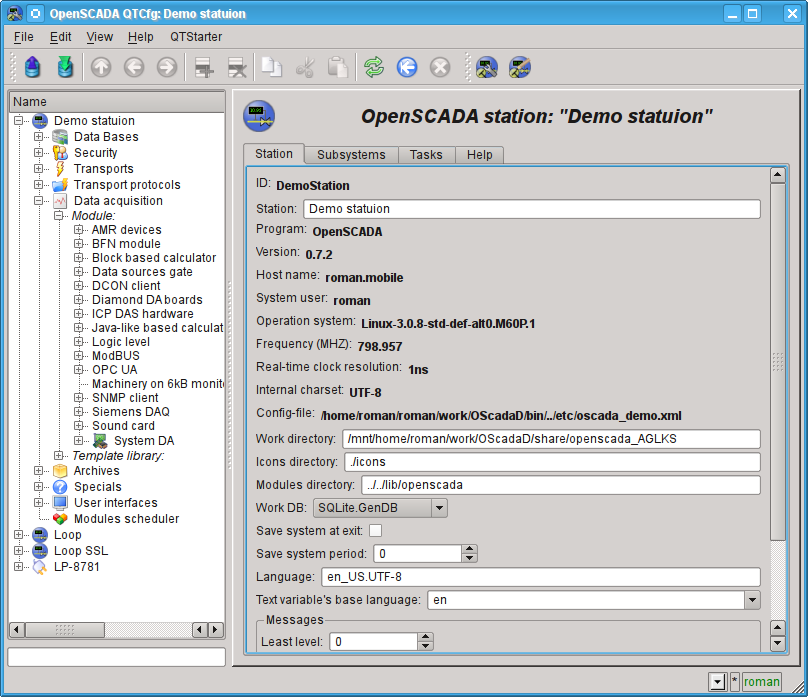
Fig. 3.2. OpenSCADA configurator - QTCfg, the root page.
Configurator of OpenSCADA is the main and sufficient mean for the configuration of any component of the system. Like many others components of OpenSCADA, configurator is implemented as a module. Besides the configurator QTCfg there may be available other configurators that performs the same function, but implemented on the basis of other technologies. For example, these are the Web-configurators: WebCfg and WebCfgD.
All actions in the future, we will examine only in the configuration tool QTCfg, although all of them can be done in other configurators.
The structure of the interface of the configurator's window can be considered in detail by reference http://wiki.oscada.org/HomePageEn/Doc/QTCfg. For us it is more important now to examine all the available interfaces of OpenSCADA, so click next to last icon in the top on the toolbar. After clicking on this icon the window of user interface development will be opened (Fig.3.3).
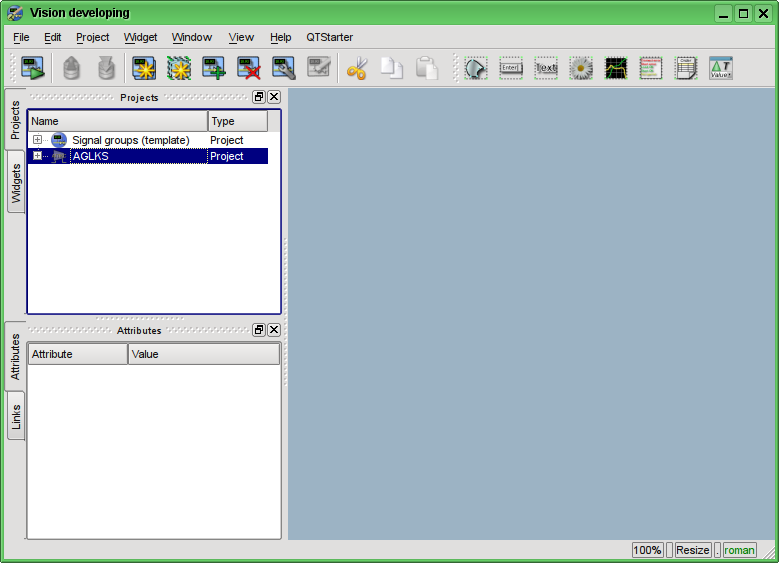
Fig. 3.3. Window of the UI development.
Then we can start the project "AGLKS" for execution. To do this, select it in the list of projects and run by clicking on the first left icon on the toolbar or in the the popup menu. The result will be the window of user interface (Fig.3.4).
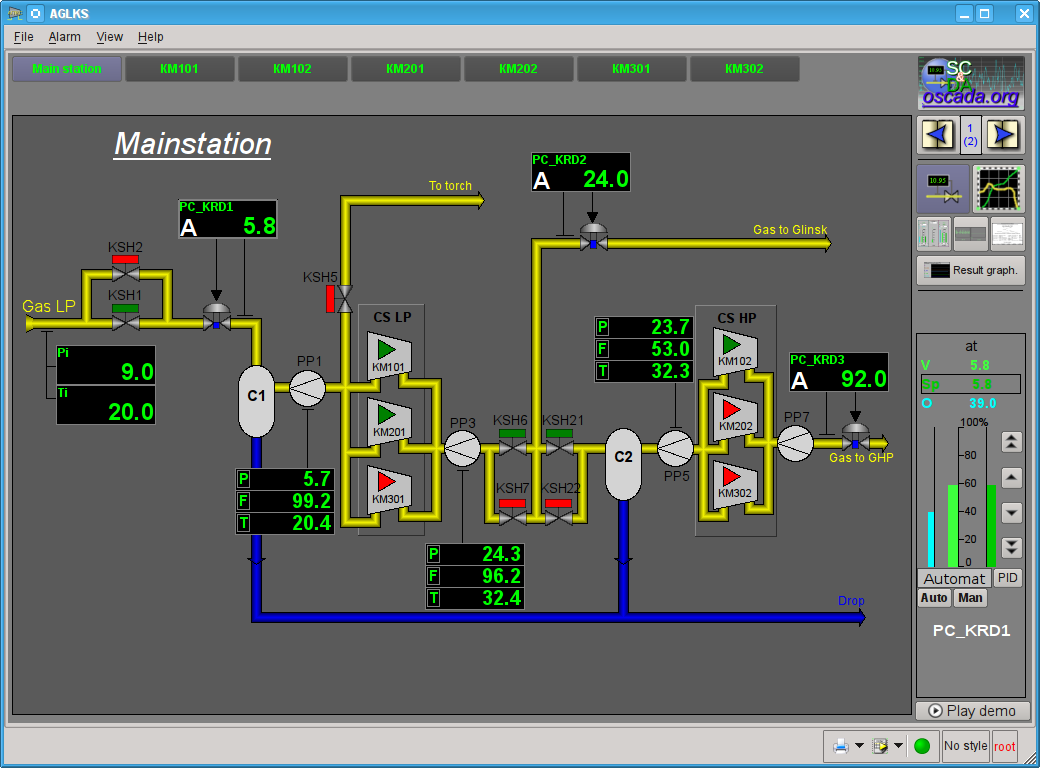
Fig. 3.4. Window of the user interface of the "AGLKS" project.
Building and executing of the user interfaces is implemented by the Vision module of the subsystem "User interfaces". In addition to this module it can be accessed the other modules of visualization. For example, OpenSCADA provides module WebVision, which allows to execute projects, previously developed in the interface module "Vision", through the Web-based technologies and standard Web-browser. All actions in the future we will examine only in the interface of the "Vision" module.
So we ran the demonstration of OpenSCADA and familiarized with the main set of tools. In the future we will use them for configuration of OpenSCADA, creating the tasks of data acquisition, binding the collected data with the purpose of their processing and making the impacts, as well as to create the user interface of visualization of the received data and to make the control actions.
Lets close the window of the project "AGLKS" execution and the window of development of the user interface for the preparation to the study of the following chapters.
The whole process of configuration of SCADA-system to perform the functions of the "top level" can be divided into two stages:
- The configuration of data sources and creation the database (DB) of the parameters of these sources.
- Formation of a visual presentation of TP data by creating the operator interface in the form of mnemonic schemes, groups of graphs, groups of contours, documents, etc.
4. Working with Data Sources
The main function of any SCADA-system is to work with data sources, namely the inquiry of programmable logic controllers (PLC) and simple modules of CPI. For more details see the document "Data acquisition in OpenSCADA" on the following link: http://wiki.oscada.org/HomePageEn/Doc/DAQ .
Support of the one or another data source depends on the protocol or API, through which the source provides its data, and the availability for the protocol/API the module in the subsystem "Data acquisition" in OpenSCADA. The total list of modules of the subsystem "Data acquisition" and documentation on them can be found here http://wiki.oscada.org/HomePageEn/Doc#h735-4 in the appropriate chapter.
Obtained from sources data subsequently are archived, processed and used for visual representation for the operator of TP.
4.1. Data inquiry of the TP device
As an example lets examine and create the inquiry for the air cooler device. Demo database contains the model of real-time of TP of compressor station of the six compressors. Data for two devices of air coolers "AT101_1" and "AT101_2" of the compressor station "KM101" are available on the protocol ModBus/TCP on port 10502.
We will create the inquiry controller on the protocol ModBUS/TCP and get these data, thereby practically made the task of inquiry of real data, because from the external device our configuration will be different only in address of the device and addresses of the ModBUS registers.
For the data acquisition through ModBUS/TCP protocol in the OpenSCADA there is "ModBUS" module in the subsystem "Data acquisition". To add a new controller we will open the page of the modules "ModBUS" in the configurator ("Demo Station"->"Data acquisition"->"Module"->"ModBUS") and in the pop-up menu of the "ModBUS" item click "Add" (Fig. 4.1.1).
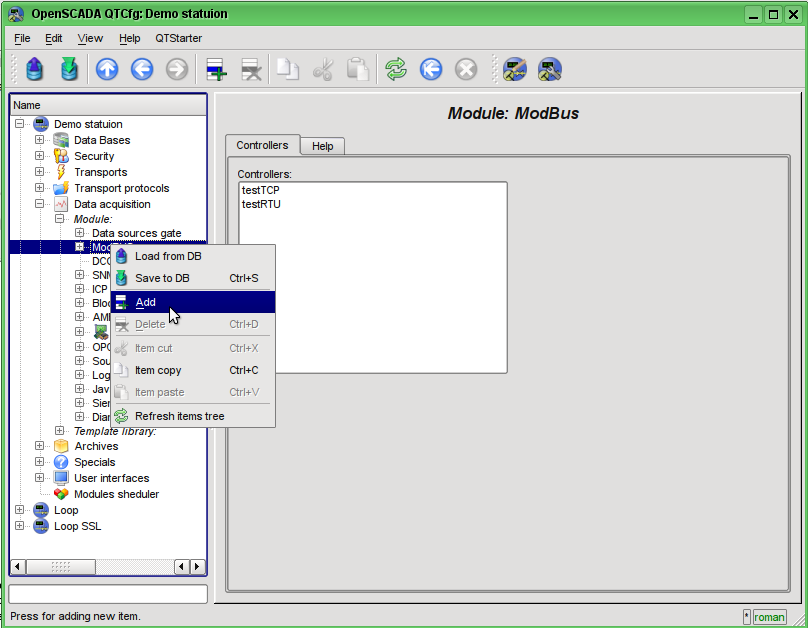
Fig. 4.1.1. Adding the controller in the "ModBUS" module of the subsystem "Data acquisition".
At the result of our actions the dialog window will appears (Fig.4.1.2) to enter the ID and name of the new controller. IDs of any objects in OpenSCADA are limited to 20 characters and they should be entered using English alphabet characters and numerals. In addition, it is desirable to start the ID with the letter. This is due to the fact that the identifier can later be used in scripts. The names of objects of OpenSCADA are limited to 50 characters and can be entered by any symbols. The names commonly used for display. If the name field is blank, instead it the identifier will be used to display. Enter the ID "KM101" and the name "KM 101".
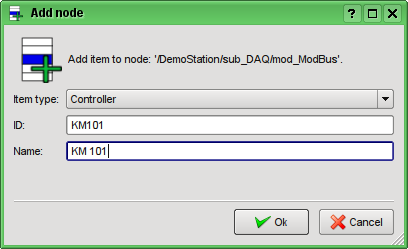
Fig. 4.1.2. Dialog to specify the ID and name of the new object.
After confirming we have a new controller's object. Lets choose it in the configurator and get acquainted with the settings (Fig.4.1.3).
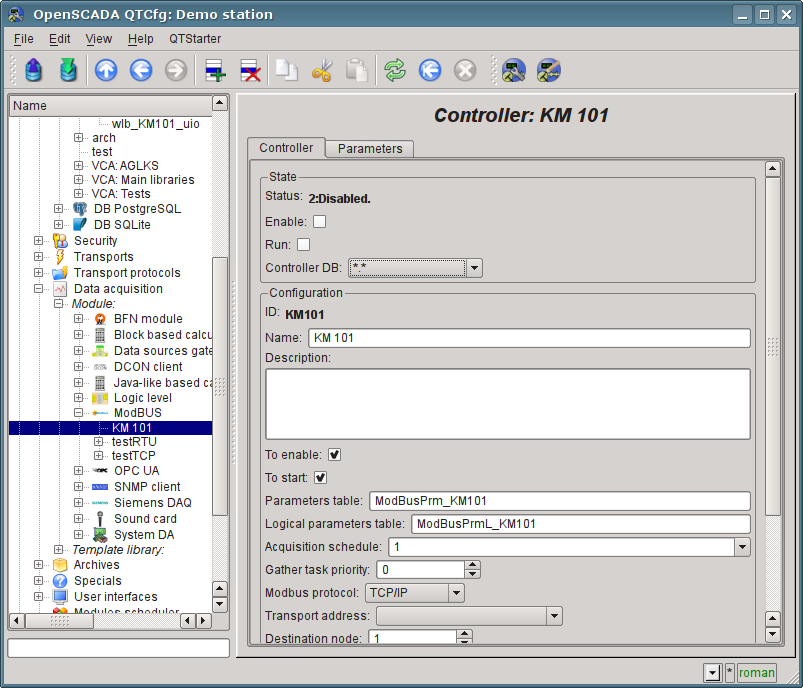
Fig. 4.1.3. The main tab of the controller's object settings of the ModBUS module.
Settings of the controller's object, as a rule, are specific for the different types of data sources and protocols. To familiarize in details with the settings of the controller's object of the "ModBUS" module you can using the link http://wiki.oscada.org/HomePageEn/Doc/ModBus#h871-13. We'll examine the general configuration of the controller's object and the key settings for the "ModBUS" module.
With the help of the page of the controller's object in the section "Status" may be primarily assessed the current state of the controller's object and the real state of connection with the physical controller, as well as quickly to change it. For example, field "Status" contains the code of error and the textual description of the current state of connection with the controller, in this case the controller's object is disabled. We are able to enable it and start by setting the flags beside the appropriate fields. Enabled controller's object initializes the parameters objects, the running one runs the task of inquiry and provides an opportunity to transmit data to the controller through the attributes of the parameters. The DB field indicates which database to store in the configuration of the object. We will store the data the main database, ie leave field the default.
In the "Config" section the configuration of the controller's object is directly contained:
- "ID" and "Name" are the fields, we've just entered at the object's creation. The Name can be changed right here, but the ID can not be changed so simply. If you want to change the ID you must Cut (Ctrl+X) and Paste (Ctrl+V) the object and enter the desired ID.
- "Description" may contain the detailed description and purpose of the controller's object. In our case, the value of this field is not fundamental.
- "Enable" and "Run" indicated the state, in which to transfer the controller's object at start of OpenSCADA. Lets set both fields.
- Two next fields "Redundant" and "Preferable run" serves for the configuration the horizontal and vertical redundancy of the data sources at the different stations (http://wiki.oscada.org/HomePageEn/Doc/DAQ#h942-10). We'll not touch them.
- "Parameters table" - contains the name of the database's table in which to store the configuration of parameters of the controller. Leave it default.
- "Acquisition schedule" - contains the configuration of the scheduler to run the inquiry task. To get the description of the format of the configuration of the field you can from the tooltip. The single number indicates the frequency of run in seconds. Let it be one second.
- "Gather task priority" - indicate the priority of the task (from -1 to 99). Priorities above zero are meaningful only when you start OpenSCADA from the privileged user. Leave this field unchanged.
- "ModBUS protocol" - indicates the variant of the ModBUS protocol. We are interested in the option "TCP/IP", so leave it as is.
- "Transport address" - indicates the outgoing transport of the subsystem "Transports", which is used to connect to the controller. In the case of "TCP/IP" option we need the transport module "Sockets?". We'll examine the creating of the outgoing transport in "Sockets" in details below.
- "Destination node" - indicates the ModBUS node. In our case, it should be "1".
- "Data fragments merge" - includes the merging not related fragments of registers in the single block of the request, up to 100 registers, instead of generating individual requests. Allows you to reduce the total time of the inquiry. Lets set this option.
- "Connection timeout" - indicates how long to wait for the response from the controller and after which to report an error of connection. Zero indicates the use of time of transport. Unchanged.
- "Restore timeout" - specifies the time in seconds after which if there is no connection to retry to reconnect.
Lets save our changes to the database by clicking the second left icon on the toolbar.
Now, in the same manner as the controller's object, let's create the outgoing transport in the module "Sockets" ("Demo Station" ->"Transports"->"Sockets") through the context menu (Fig.4.1.4). And let's call the transport as well as the controller: "KM101" and the name - "KM 101". Note that in the "Item type" of the dialog (fig.4.1.2) you should choose the "Output transport.
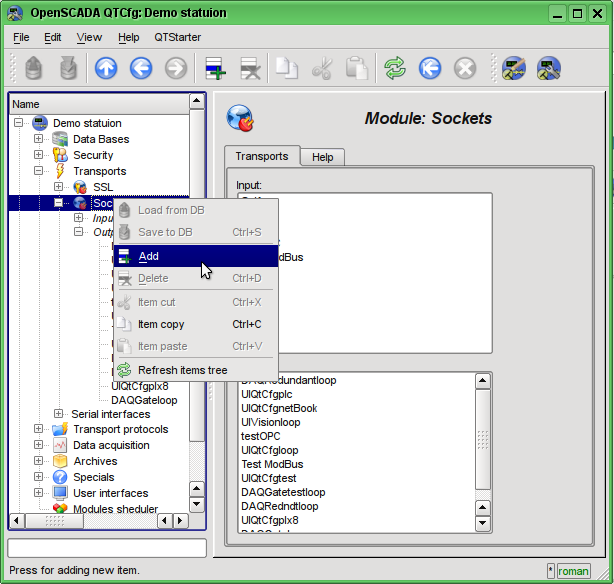
Fig. 4.1.4. Adding the outgoing transport in the module "Sockets" of subsystem "Transports".
The configuration page of outgoing transport is shown in Fig.4.1.5. This page also contains the section of the status and operational control. In the "Status" field the textual description of the current state of transport is contained. We can run it for execution by checking the box in front of the appropriate field. Running object of the transport initiates the connection to the external node. Field DB indicates the database to store the configuration of the object. We will store it in the main database.
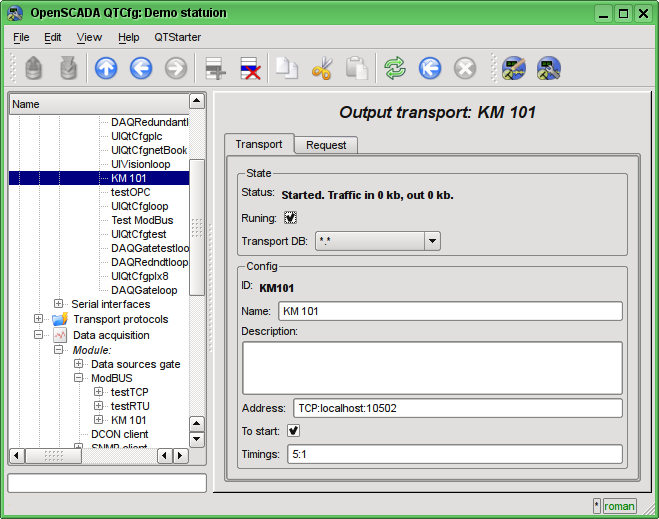
Fig. 4.1.5. The configuration page of the outgoing transport of the "Sockets" module of subsystem "Transports".
In the "Config" section the configuration of the transport object is contained:
- "ID" and "Name" contain the titles, which we entered when creating the object.
- "Description" may contain the detailed description and purpose of the object.
- "Address" specifies the type, address and mode of connection with the remote station. You can view the record format in the tooltip. Let's set this field to the value "TCP:localhost:10502".
- "To start" indicates in what state to transfer an object at start of OpenSCADA. Let's set the field.
- "Timings" indicate the duration of waiting for the response from the remote station. You can view the record format in the tooltip. Let us leave the value unchanged.
Let's save the transport and return to the configuration field "Transport address" of the controller's object and select the address "Sockets.KM101". Setting the controller's object is finished. The next step is configuration and choose the data you need to query from the controller. This setting is done by creating an object "Parameter" of the controller. The "Parameter" object allows you to describe the list of data obtained from the comptroller and to transmit them to the environment of OpenSCADA.
To add a new object of the parameter we will open in the configurator the page of our controller's object and on the popup menu of item "KM101" we'll click "Add". The parameter's object we'll call "AT101_1" and the name "AT 101_1".
The configuration page of the obtained parameter is shown in the Fig.4.1.6. This page contains the section of status and operational control. In the "Type" field it is contained the ID of the type of the parameter, in this case it is only possible the "Standard" type (std). We can enable the parameter by checking the box of the appropriate field. The enabled parameter is involved in the process of exchange with the controller.
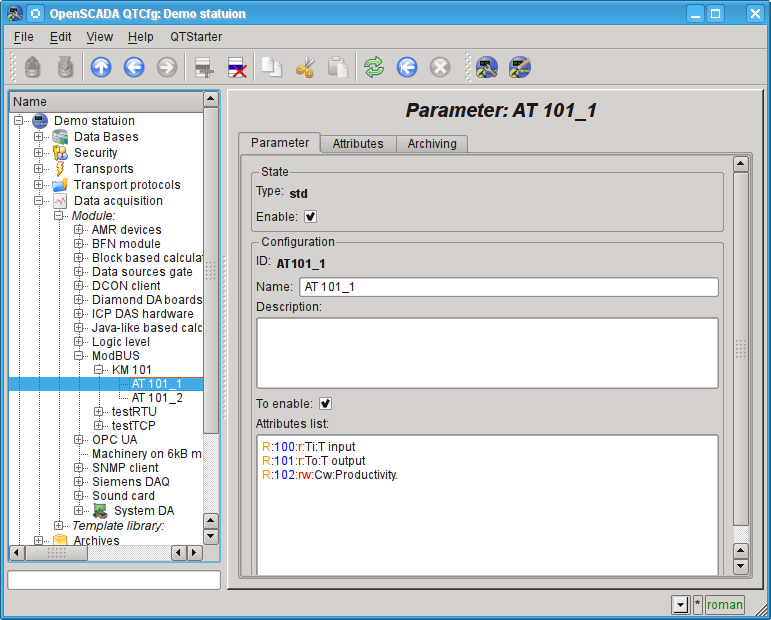
Fig. 4.1.6. Configuration page of the controller's parameter "ModBUS".
In the "Config" section the configuration of tge parameter's object is contained:
- "ID" and "Name" contain the titles, which we entered when creating the object.
- "Description" may contain the detailed description and purpose of the object.
- "To enable" indicates in what state to transfer an object at start of OpenSCADA. Let's set the field.
- "Attributes list" contains the configuration of attributes of parameters in relation of them to the registers and bits of ModBUS. You can view the record format in the tooltip. Let's set the contents of the text field as follows:
R:100:r:Ti:T input
R:101:r:To:T output
R:102:rw:Cw:Productivity.
Similarly, create the second option: "AT101_2" with the name "AT 101_2". The list of attributes fro it let's set in:
R:103:r:Ti:T input
R:104:r:To:T output
R:105:rw:Cw:Productivity.
Let's save the both objects of the parameter. Now we can enable and run our controller to initiate the exchange. To do this, go back to the page of our controller's object and in the "Status" section let's set the flag "Run". If we do not miss something, the exchange is successfully started and in the "Status" field we'll get something like this, as it is shown in the Fig.4.1.7.
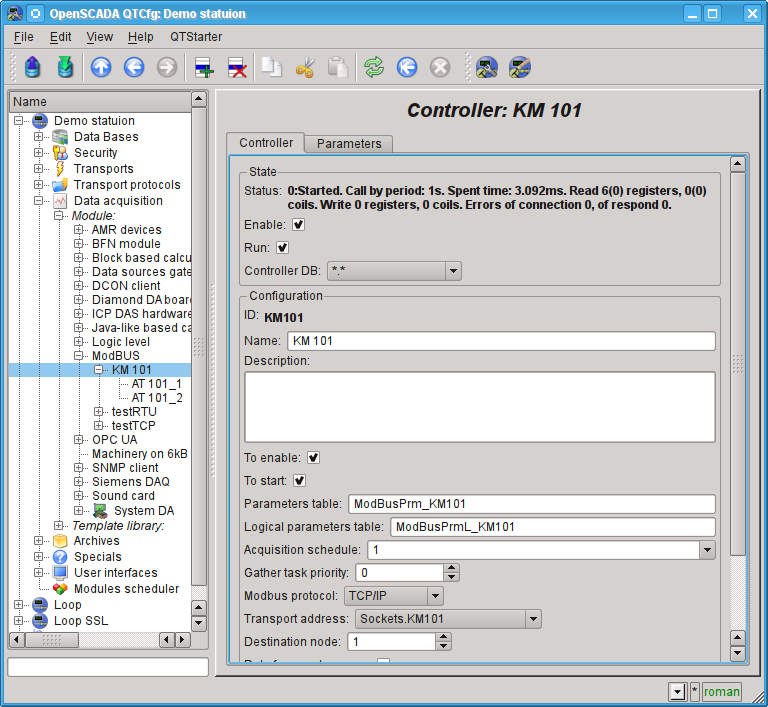
Fig. 4.1.7. The page of the controller's object if the exchange with the physical controller is successful.
In the case of a successful exchange with the physical controller, we'll obtain the described data of the controller in the infrastructure of OpenSCADA. You can see these data on the tab "Attributes" of our parameters AT101_1 (Fig.4.1.8) and AT101_2. Because the inquiry is regularly and at intervals of a second, then we can observe their changes by clicking the button "Refresh current page" on the toolbar.
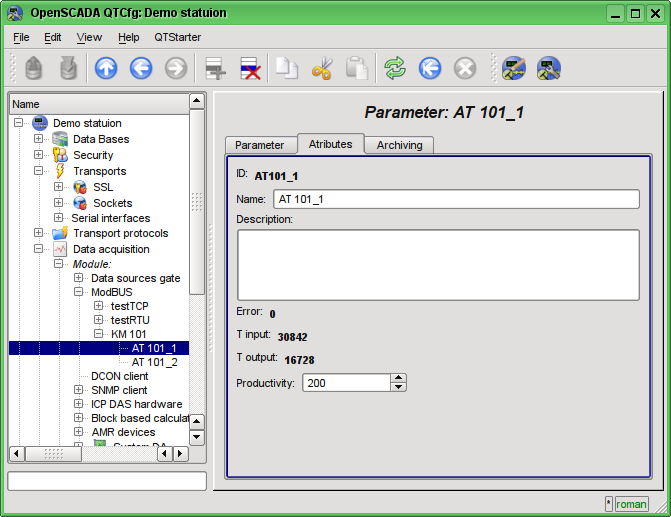
Fig. 4.1.8. The page of described attributes of the AT101_1 parameter.
The configuration of data acquisition is complete.
4.2. TP data processing
Frequently the initial data obtained from the data source are the "raw", ie unprepared or uncomfortable for the visual presentation, so you need to perform this preparation. In our example, we received the data that comes in the code from the scale inside the controller. Our task is to perform the calculation of real values from the received data. Data processing in OpenSCADA can be done, either during the visualization, and in the subsystem "Data acquisition". However, the mixing of the visualization process and processing of initial data makes the configuration confusing and makes the obtained images of the visualization unsuitable for reuse. For this reason, let's make the preparation of data in the subsystem "Data acquisition".
Calculations in the subsystem "Data acquisition" are done via the module of logic level "LogicLev" and the templates of parameters of the subsystem "Data acquisition". To familiarize with the concept of "logical level" you can here: http://wiki.oscada.org/HomePageEn/Doc/DAQ#h942-9 .
To make calculations in the module of the logic level you must first create the template of the parameter of subsystem "Data acquisition". To do this, let's open the page of templates' library "Main templates" ("Demo Station"->"Data acquisition"->"Template library"->"Main templates") and through the context menu we will create the template object "airCooler" with the name "Air cooler". The configuration page of the resulting object is shows in the Fig.4.2.1. This page contains the "State" section and the section of the operational control. We can make the template accessing by checking the box next to the corresponding field. Accessing templates can be connected to the data acquisition parameters, and the parameters will make calculations on this template. In the "Used" field the number of objects that use this template to calculate the image of the parameter is indicated. In the "Config" section only the familiar for us configuration fields are present.
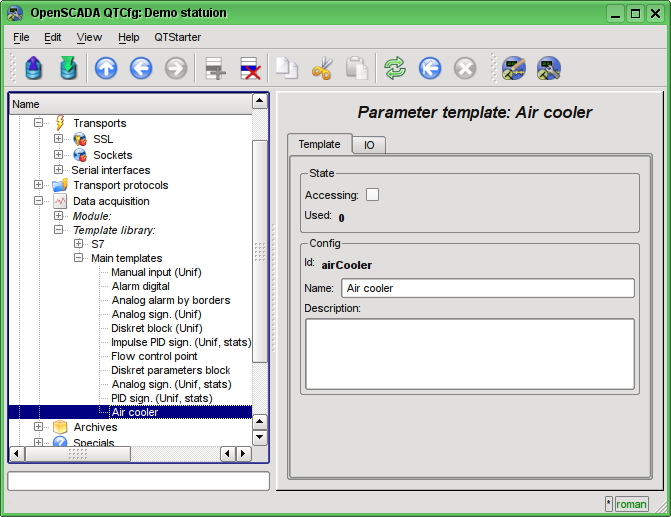
Fig. 4.2.1. The configuration page of the template's object.
The basic configuration and the formation of the template of parameter f data acquisition is made in the tab "IO" (Fig.4.2.2) of the template. The detailed description of the process of the template's formation can be found here: http://wiki.oscada.org/HomePageEn/Doc/ProgrammManual#h932-6 .
Let's create in the template two properties fro the inputs ("TiCod", "ToCod"), two for outputs ("Ti","To") and one clear property ("Cw"). For the "TiCod", "ToCod" and "Cw" let's set the "Configure" flag to the "Link", this will let to link to them the "raw" source. For the "Ti" and "To" let's set the "Attribute" flag to the "Read only", and for the "Cw" - "Full access", we make it to form the three attributes of the resulting parameter of the data acquisition: two - read only and one with the full access..
The program language let's set to "JavaLikeCalc.JavaScript", and the program:
Ti=150*TiCod/65536;
To=100*ToCod/65536;
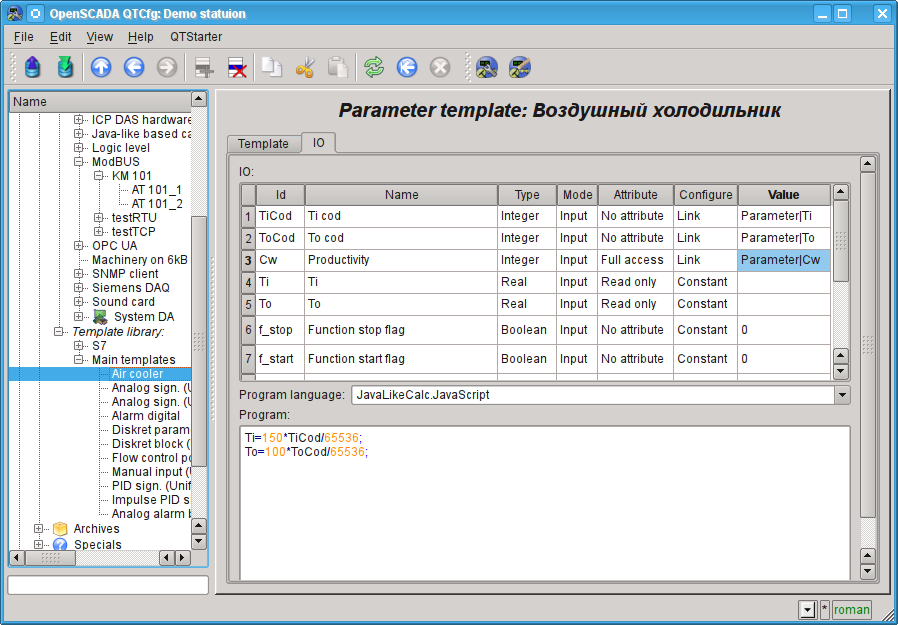
Fig. 4.2.2. Tab "IO" tab of the configuration page of the template's object.
Let's save the resulting template and set the accessibility flag.
Now we'll create the controller's parameters' objects in the "LogicLev" module of subsystem "Data acquisition". The controller and its parameters in the module "LogicLev" are identical to the previously created in the module "ModBUS" and they are created on the page: "Demo station"->"Data acquisition->"Module"->"Logic level". The object of the controller and the parameters will be called identical to the objects in the module "ModBUS".
The object of the controller of the module "LogicLev" (Fig.4.2.3) has no specific settings and the default ones may not be touched.
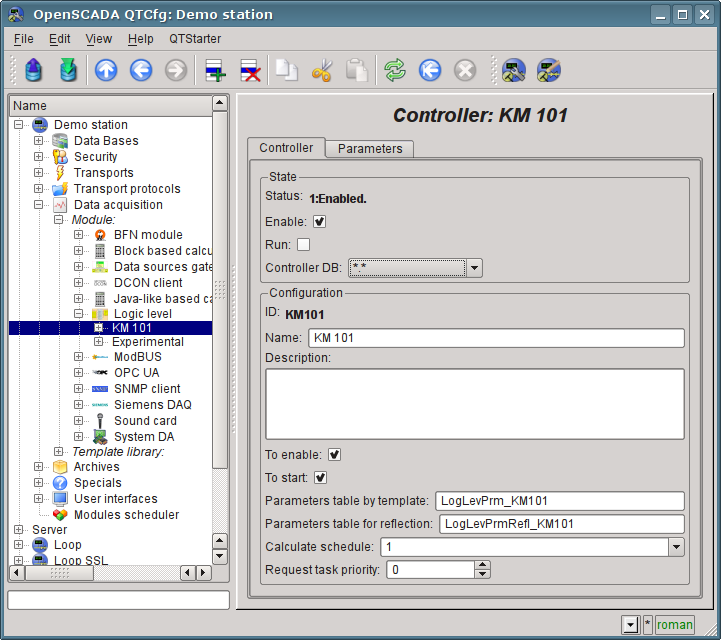
Fig. 4.2.3. The main tab of the configuration of the object of controller of the LogicLev module.
The object of the parameter of controller of the "LogicLev" module (Fig.4.2.4) has only the one specific setting - "Mode", where you need to set "Template" and select the address of the template, we have just created.
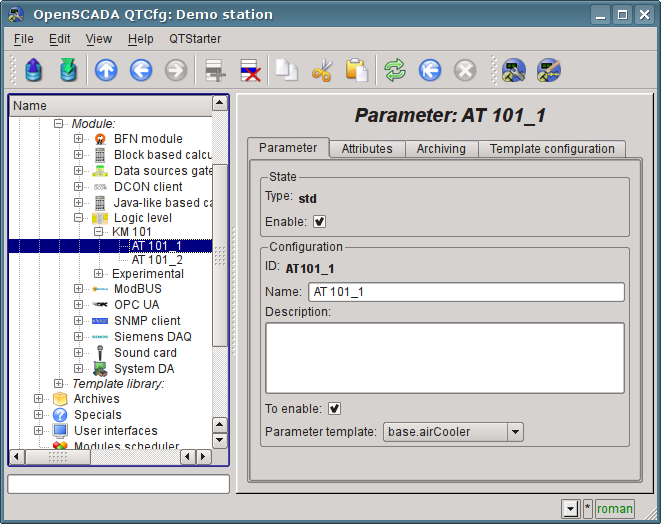
Fig. 4.2.4. Configuration page of the "LogicLev" controller's parameter.
In addition to the basic configuration of the parameter it is necessary to configure the attached template (Fig. 4.2.5). Configuration tab of the template appears in the parameter's mode "Enable". To enable the parameter it is possible by the previously enabling the controller. The flag "Only attributes are to be shown" allows you to set apart each link (Fig.4.2.6). Since we are made the following format of linkage in the template "Parameter|Ti", then all three links we can set simply by typing an address to the parameter in the "ModBus" controller. We shall specify the following addresses "ModBus.KM101.AT101_1" and "ModBus.KM101.AT101_2" in the appropriate parameters.
It should be noted that all the input fields addresses of objects in OpenSCADA provide a mechanism to set the address. This mechanism involves elemental choice, during which there is a movement in the interior. For example, typing the address "ModBus.KM101.AT101_1" first we will be able to choose the type of data source, including the "ModBus". By selecting "ModBus" in the list of available items for selection will be added to the module controllers "ModBus", among which will be "ModBus.KM101". Select the item "ModBus.KM101" add to the list of parameters of the controller, etc. to the final element in accordance with the hierarchy of objects (http://wiki.oscada.org/Doc/OpisanieProgrammy#h827-6 ). To be able to return to levels above the selection list of all the elements are inserted into the higher levels of the current value of the address.
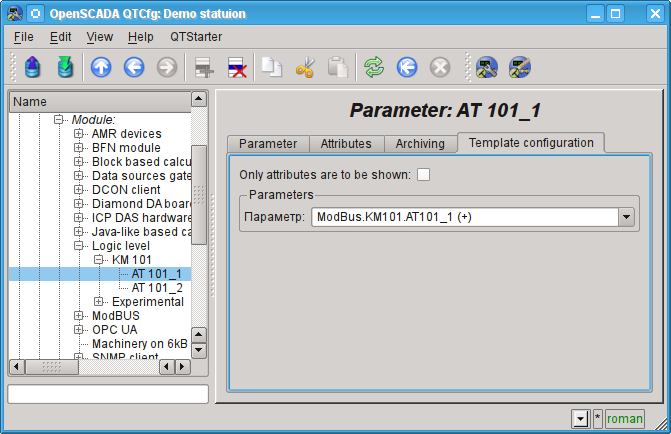
Fig. 4.2.5. The "Template config" tab of the "LogicLev" controller's parameter page.
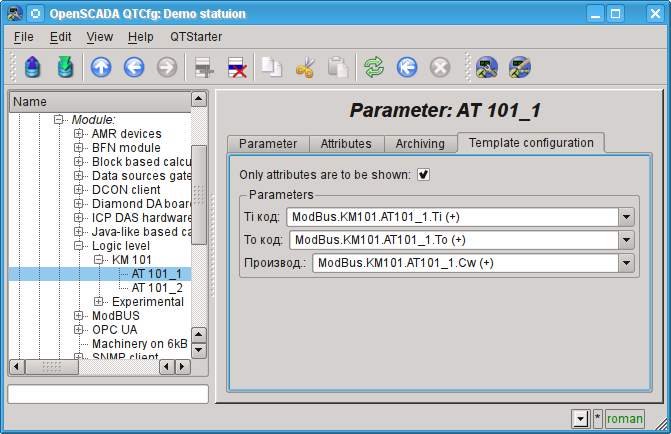
Fig. 4.2.6. The "Template config" tab of the "LogicLev" controller's parameter page with the links details.
Let's save the created objects of the controller and parameters. After this, run the controller for execution by setting the controller's flag "Run" in the "State". If we do not miss something, the calculation is successfully started and in the "State" we'll get something like the one on Fig.4.2.7.
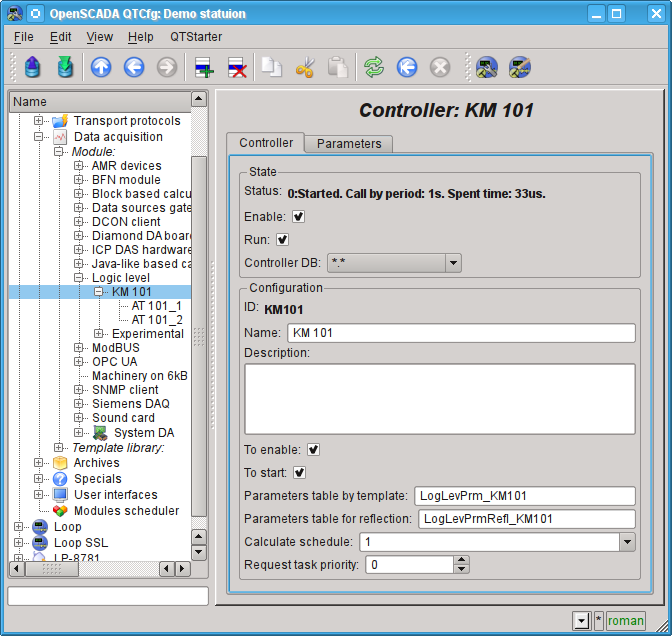
Fig. 4.2.7. The page of the controller's object if the calculation of the controller in the "LogicLev" module is successful.
In case of successful processing of the template's code in the parameters we'll obtain the processed data in the infrastructure of OpenSCADA. You can see these data on the tab "Attributes" of our parameters AT101_1 (Fig.4.2.8) and AT101_2.
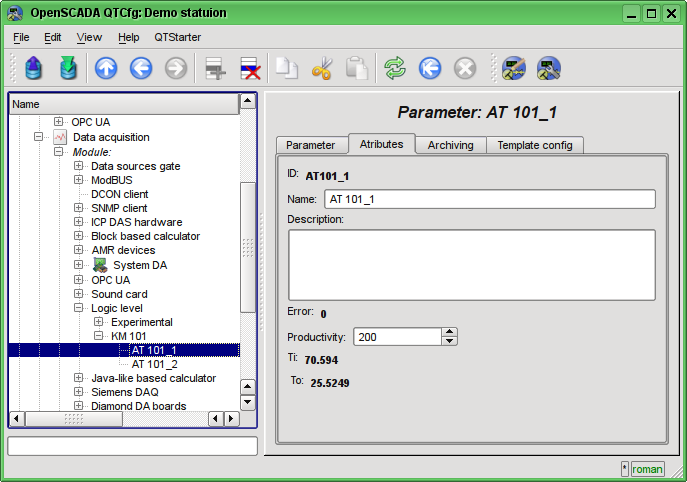
Fig. 4.2.8. The page of the attributes of the parameter AT101_1 of "LogicLev" module.
The configuration of data processing is complete.
4.3. Enabling the TP data archiving
Many tasks require to keep the history of parameters of the TP. To activate the archiving of the attributes "Ti" and "To" of the AT101_1 and AT101_2 parameters in the previously created controller of the "LogicLev" module it is enough on the "Archiving" tab of the configuration page to choose which attributes are to be archived and by what archivers (Fig.4.3.1). We'll choose the archiving of "Ti" and "To" attributes in the "FSArch.1s" archiver.
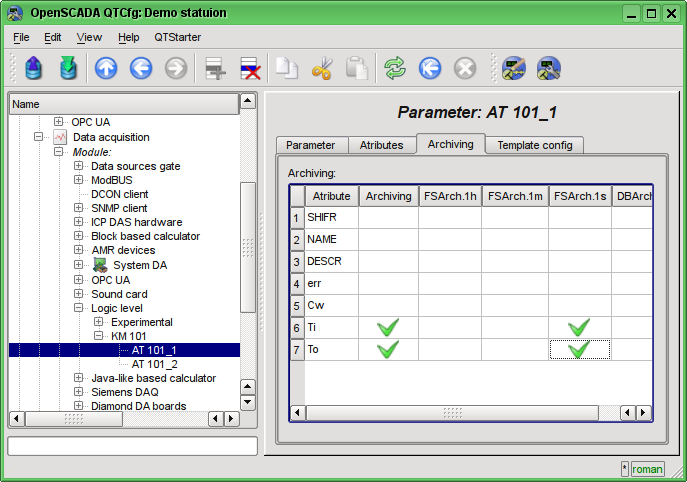
Fig. 4.3.1. The "Archiving" tab of the AT101_1 parameter of the "LogicLev" module.
As the result of this operation it will be automatically created the objects of archives for the selected attributes. For example, the archive's object for the attribute "Ti" of the AT101_1 parameter is presented at Fig.4.3.2.
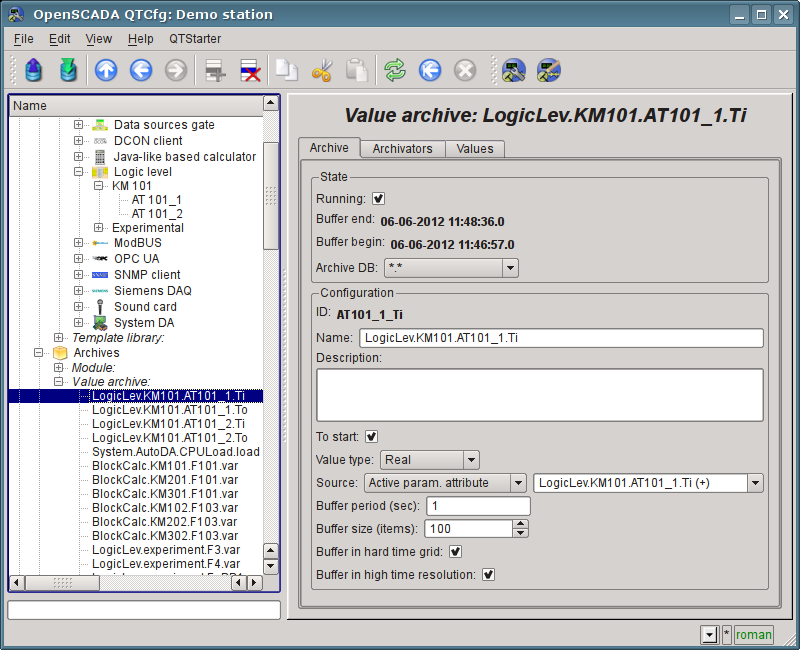
Fig. 4.3.2. The page of the archive's object of the "Ti" attribute of the AT101_1 parameter.
Usually the settings of the archive do not need to be change, but if you need the special configuration, it can be done on the aforesaid page. Often you may need to obtain the information about the archive. For example, find the archive's size, both in time and in the bytes, as well as to look at the graph(diagram) of the parameter (Fig.4.3.3).
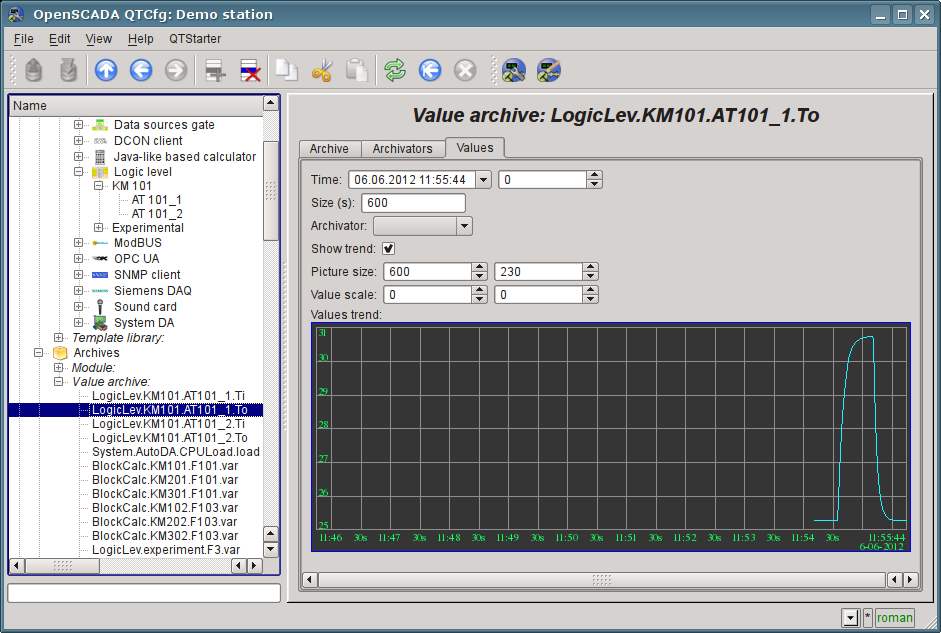
Fig. 4.3.3. The "Values" tab of the page of the archive's object of the "Ti" attribute of AT101_1 parameter.
5. The formation of visual presentation
The formation of visual presentation may be performed at three levels of complexity and the user can select any of them, depending on the level of his knowledge and availability of libraries with ready-made images and templates.
The first level requires a minimum qualification of the user, but implies the presence of template frames' libraries, which are needed to solve his task. Within the limits of the first level the user only has to know how to connect the dynamics to the template frames' pages and how to add new pages of the template frames.
The second level provides the additional ability to create new frames based on the finished complex elements, simply by their placement in the frame. To achieve this qualification level users will need libraries of complex elements needed to solve his tasks.
The third level requires that user is able to use of all the tools of the development environment of visual interfaces of OpenSCADA, including the creation of new complex elements and developing of the new user interfaces in the project.
All works on the visualization interface we will make in an environment of the "Vision" module of subsystem "User interfaces". To open the "Vision" interface window you should click the second icon on the right on the configurator toolbar. The result is the window previously shown in Fig.3.3.
5.1. Adding the template page in the project and linkage of the dynamics
Let's examine the first level of complexity task, when in the already designed interface it is necessary to link the dynamics to the template page. The concept of "Page's template" means the page on the basis of which with the help of inheritance it can be created a lot of final visualization pages with an individual list of the dynamics. The examples of these pages are: "Graphics group", "Contours group", "Overview frames panel" and "Result graphics". In the Fig.5.1.1 the template page "Graphics group" in the project tree "Signal groups (template)" is presented.
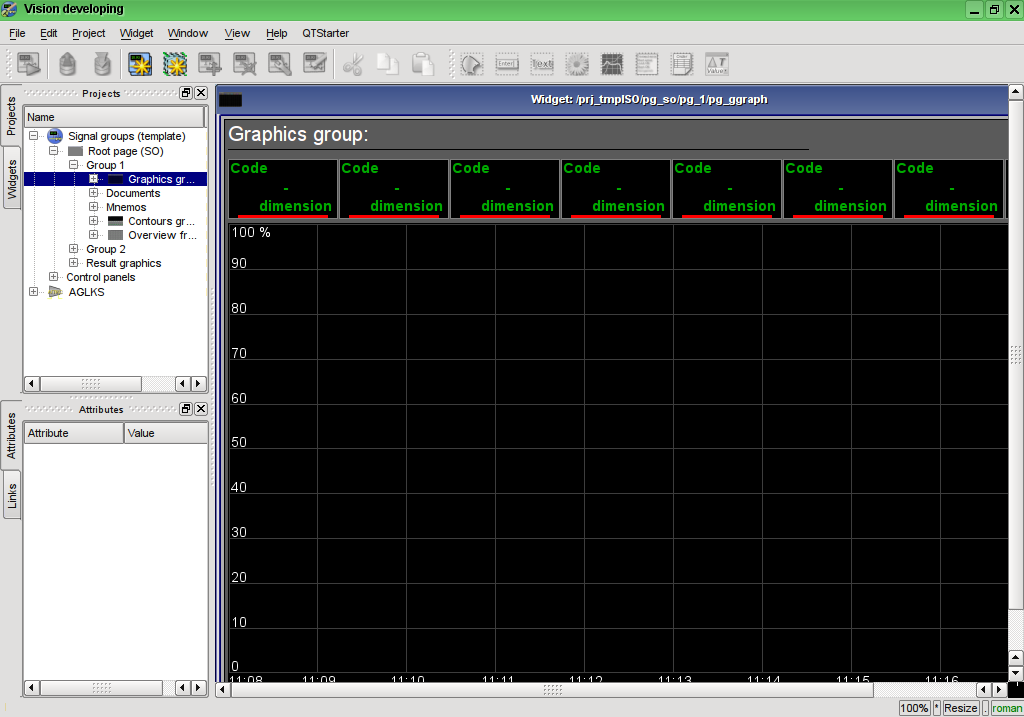
Fig. 5.1.1. The template page "Graphics group".
The "Graphics group" template page provides an opportunity to link up to eight signals for simultaneous display them on the diagram. Elements at the top will automatically hide for unspecified links.
Let's create the new group of graphs "Graphics 2" in the template container "Graphics group" of the first group of the root page of "Signal groups (template)". To do this, let's in the context menu of the "Graphics group" item select "Add visual item" (Fig.5.1.2). To enter the ID and name of the new visual item the dialog will appear (Fig.5.1.3). Enter the ID "2" and the name "Graphics 2".
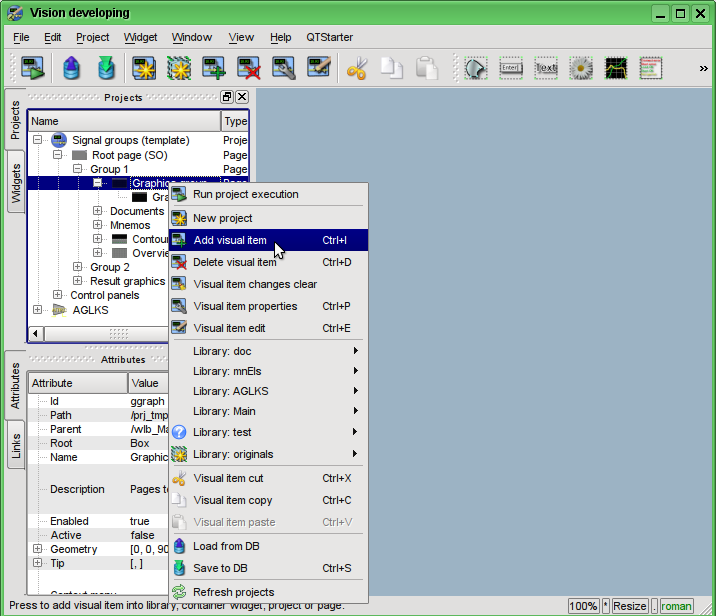
Fig. 5.1.2. Adding the "Graphics 2" group of graphs.
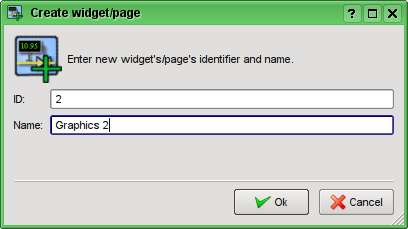
Fig. 5.1.3. Input dialog of the ID and name.
After confirming the name input it will be created the new page. However, for its activation, we need to enable it. You can enable this page in the dialog of the properties editing page (Fig.5.1.4). To open this page it is possible by selecting the menu item 'Visual item properties "in the context menu of the newly created page.
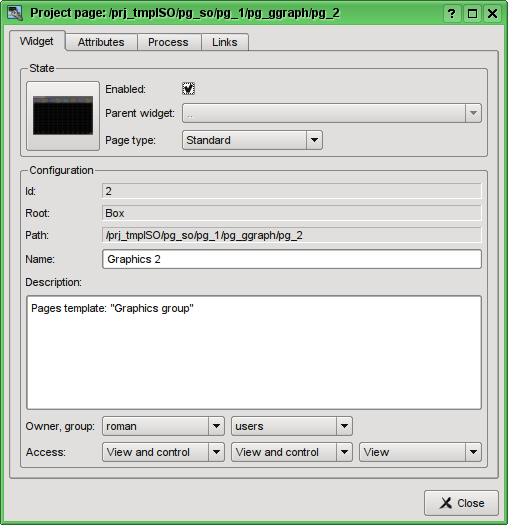
Fig. 5.1.4. Dialogue of the properties editing of the visual element.
After enabling the page you are ready to set links to the created in the previous chapter parameters of controllers. To do this, without leaving the dialog to edit the properties of the newly created page (Fig.5.1.4), click on the "Links" tab (Fig.5.1.5). On this tab, we can see the tree with the elements "el1" ... "el8". Unwinding any of the elements we'll see the "Parameter" branch, in this branch we need to specify or select the address of our attributes "Ti" and "To". Total we will fill the four elements. When filling out the elements the part of properties must be specified as constants. For example, it is necessarily needed to be specified:
- name - "val:AT101_1 Ti"
- ed - "val:deg.C"
- max - "val:150" (for Ti) and "val:100" (for To)
- min - "val:0"
If you foresee the existence of the attributes specified in the controller parameter's template as constant, it will be possible to specify only parameter, and the attributes will be set automatically.
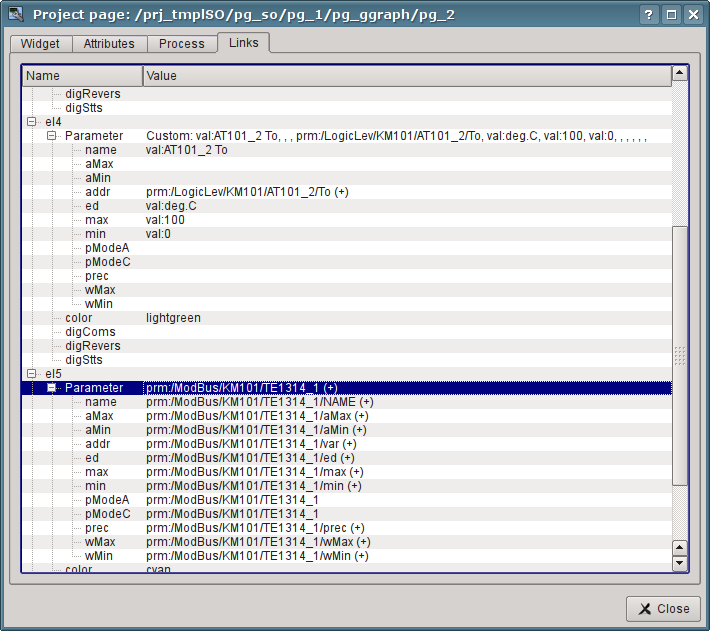
Fig. 5.1.5. The "Links" tab of the dialog of edit the properties of visual item.
Having finished the links entering, we can see the result of our efforts. To do this we'll close the editing properties dialog and run the "Signal groups (template)" for execution, about the run button we remember from the previous chapters. Then let's choose the graphics and switch to the second page. With error-free configuration, we should see something similar to that shown in Fig.5.1.6.
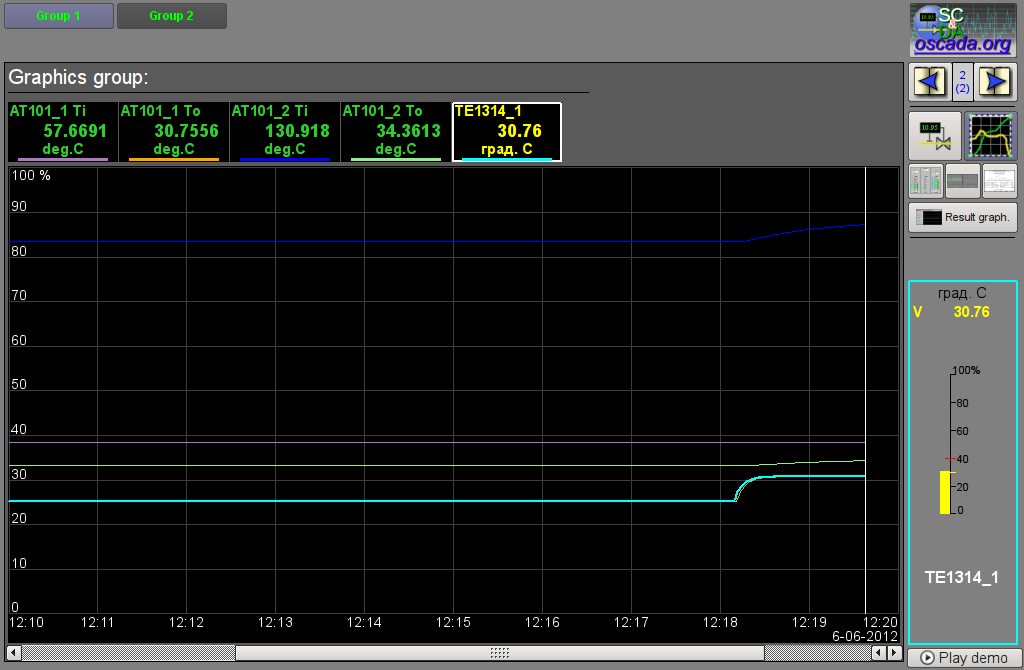
Fig. 5.1.6. The created group of graphs with the four signals linked.
5.2. The creation of the new frame, the mnemonic scheme
Let's raise the bar and create the new frame, on which we'll put the basic elements of our controllers' values displaying. Such frames are usually called the mnemonic schemes and in addition to the dynamics displaying, and even in the first place, contain the static image of the technological process in the mnemonic representation. We are not going to focus on the creation of statics and we'll add the dynamic elements and link them to the parameters of our controllers. We'll put the created frame to the tree of already known to us project.
New frames, destined later to be placed in the project, are to be created in the library of widgets. Let's create the new library of widgets "KM101" by the selecting of the vertical tab "Widgets" and in the context menu of the window of widgets' libraries click "New Library" (Fig.5.2.1). In the dialog of entering the name we'll indicate the identifier "KM101" and the name "KM 101" and then confirm.
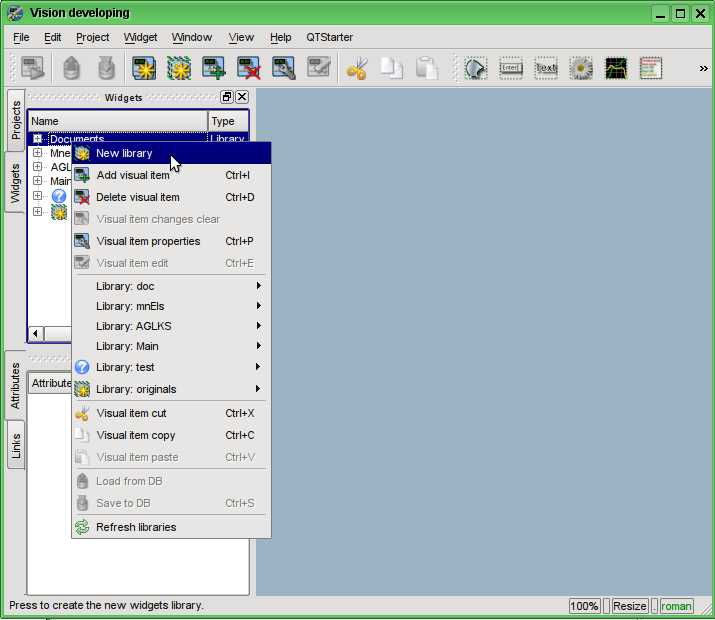
Fig. 5.2.1. Adding the new library of widgets.
Next we'll add the new frame "AT101" by selecting "Library: originals" -> "Elements box" in the context menu of the created library "KM101" (Fig.5.2.2). In the dialog of entering the name we'll indicate the identifier "AT101" and the name "AT 101" and then confirm. At the heart of any frame and the page must be based on an element of "Elements box" ("Box"), and therefore we have chosen it.
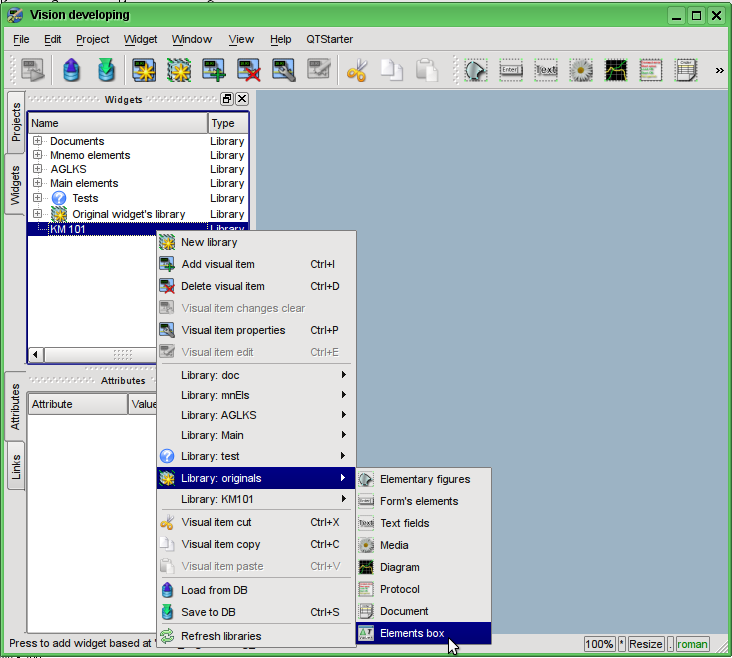
Fig. 5.2.2. Adding the new frame.
Immediately after the creation of the new frame element it is necessary to set its basic properties, characteristic to the mnemonic scheme frame. Properties or attributes of any visual element can be specified in the toolbar "Attributes", having pre-selected the visual element. Let's select the created frame "AT 101" and set the following properties:
- Geometry:width - 900;
- Geometry:height - 600;
- Background:color - "#5A5A5A";
- Border:width - 1;
- Border:color - "black".
The result will be an empty frame (Fig.5.2.3), ready to add items to it. To edit or view the the frame you should in the frame's context menu select the "Visual item edit".
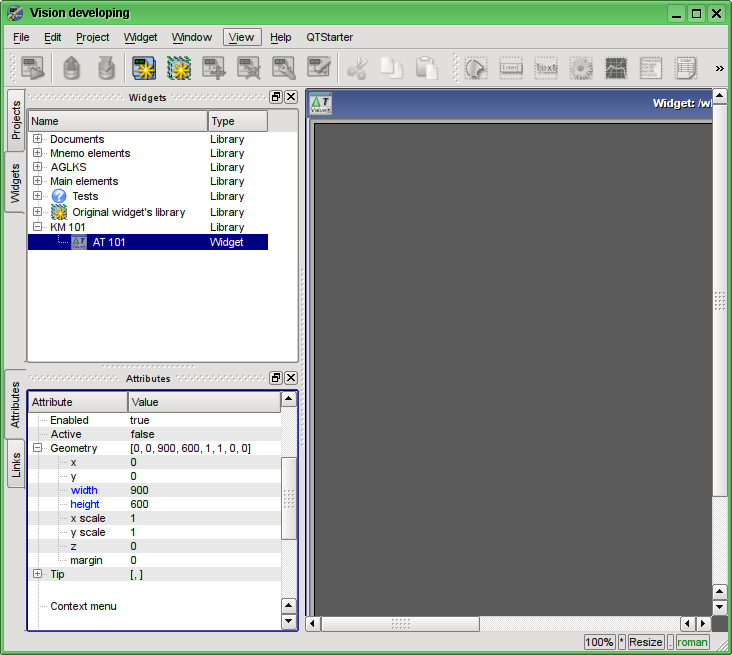
Fig. 5.2.3. The view of the new frame and set attributes for the mnemonic scheme.
Now let's add on frame the elements for the value of the analog parameters displaying for our four signals. To place an element for displaying an analog signal to the mnemonic scheme it is necessary to select our mnemonic scheme, and then in the window's menu to select the "Widget" -> "Library: Main&" -> "Analog show" after which the cursor with an image of this element will appear, which should be moving to the desired location on the mnemonic scheme and then the left mouse button should be pressed. At the time of adding the dialog asking the name of the new element will appear. We'll add this way the four elements which we'll call: "A1_Ti", "A1_To", "A2_Ti" and "A2_To". The added elements can be subsequently positioned as needed by simply selecting and dragging them by the mouse. After such manipulations, we should get the mnemonic scheme with the view, similar to Fig.5.2.4.
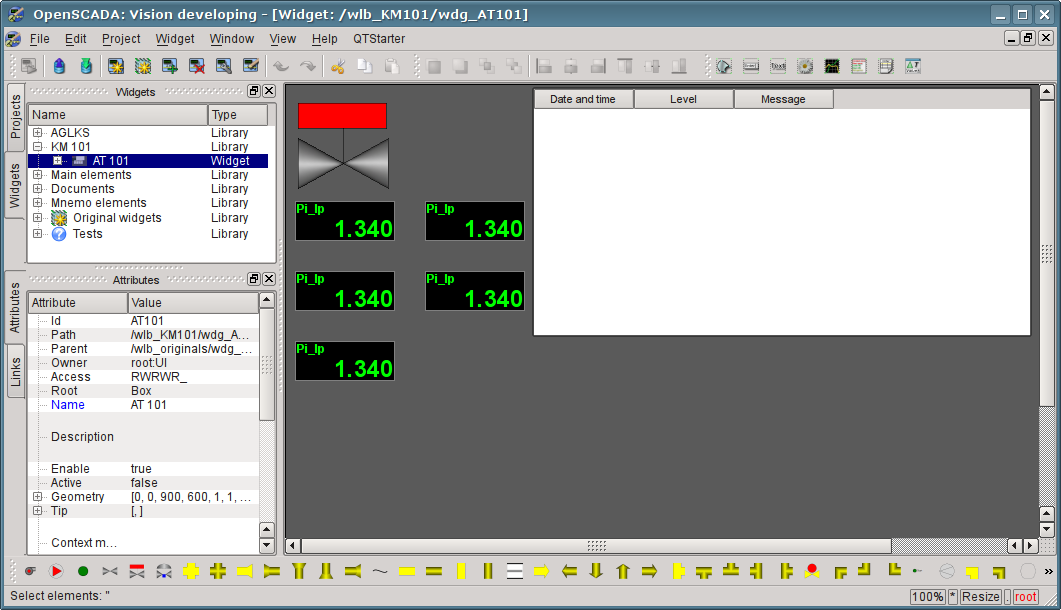
Fig. 5.2.4. The view of the new frame and set attributes for the mnemonic scheme.
This procedure of the creating the mnemonic scheme we'll consider to be finished. Save the new library of widgets "KM101" and proceed to the stage of the placing our mnemonic scheme in the project's tree of "Signal groups (template)".
Let's put our mnemonic scheme to the branch of the "Signal groups (template"->"Root page (SO)"->"Group 1"->"Mnemos" by selecting in the context menu for the "Mnemos" item the item "Library: KM101"->"AT 101". The identifier for the new mnemonic scheme let's set to "2" and the name field let's leave blank. Immediately after adding it is necessary to set the basic property of the mnemonic scheme "Page:group" to the value "so".
Next you need to make an already familiar to us the operation from the previous chapter, namely the setting of links to the created in the previous chapter the parameters of controllers. To do this let's open the dialogue of the properties editing of the mnemonic scheme on the "Links" tab (Fig.5.2.5). On this tab, we'll see the tree with the elements of "A1_Ti", "A1_To", "A2_Ti" and "A2_To". Unwinding any of the elements, we'll see the "Parameter" branch, in this branch we are to specify or select the address of our attributes "Ti" and "To", respectively. When filling out the elements the part of the properties must be specified as constants. For example, necessarily must be specified:
- pName - "val:AT101_1 Ti"
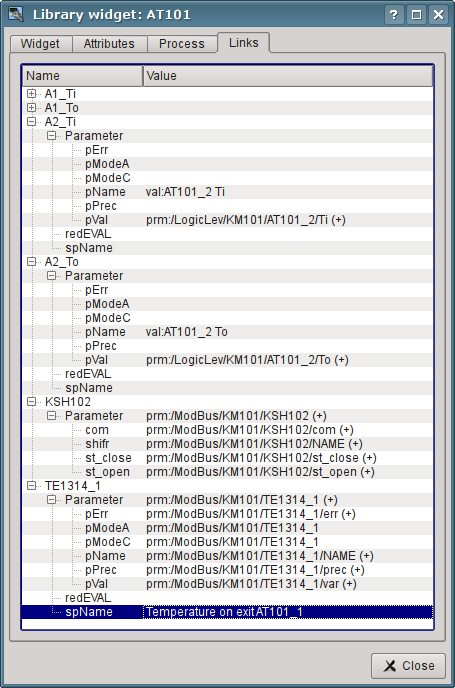
Fig. 5.2.5. The "Links" tab of dialog of editing the properties of the mnemonic scheme.
Now we can save our mnemonic scheme and verify what we have. To do this, we'll close the properties dialog and run the "Signal groups (template)" for execution. Then switch to the second mnemonic scheme by the paging buttons. With error-free configuration, we should see something similar to that shown in Fig.5.2.6.
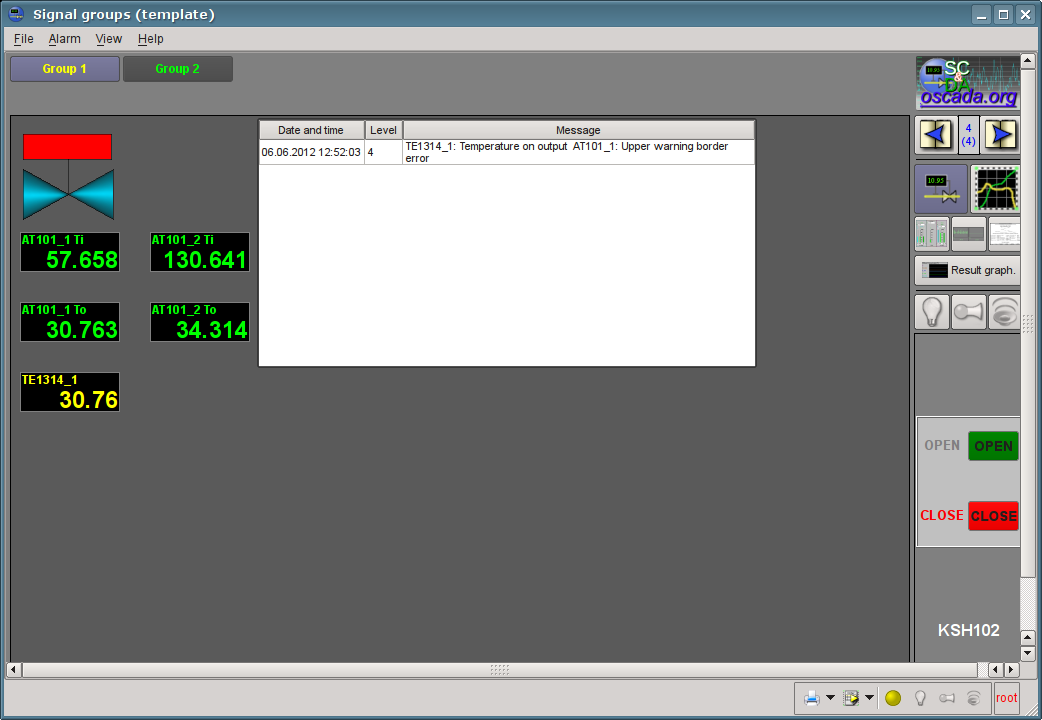
Fig. 5.2.6. The created mnemonic scheme with four linked signals.
5.3. Creation of the new complex element
Let's proceed to the objectives of the third level of complexity, namely the creation of an complex element. Creating of the new complex element, which includes a combination of basic primitives, can be made in several stages. As an example, let's examine the task, consisting of two stages:
- Creation the widget "Air cooler" on the basis of the primitive "Elementary figures".
- Creation the final grouped widget "Cooler" based on the primitive "Elements box".
5.3.1. Creation the widget "Air cooler" on the basis of the primitive "Elementary figures".
The widget will be created in our previously made library "KM101". To do this we'll make right mouse button click on this library and select the item "Library: originals"->"Elementary figures", as it is shown in Figure 5.3.1.1. For a new element let's write the "air_cooler" identifier and the name "Air cooler".
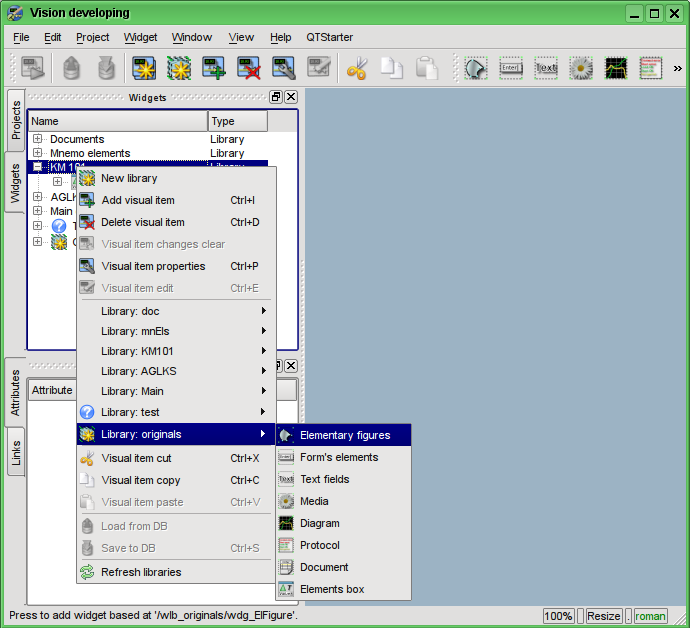
Fig. 5.3.1.1. Adding the widget based on the primitive "Elementary figures" to the "KM101" library.
After confirmation, we will have a new widget's object with the name "Air cooler". Select it in the widget library "KM101" and open for editing via the context menu of the new element. Let us now set in the "Attributes" tab in the "Geometry" section width and height of the widget to the 200 pixels (Fig. 5.3.1.2).
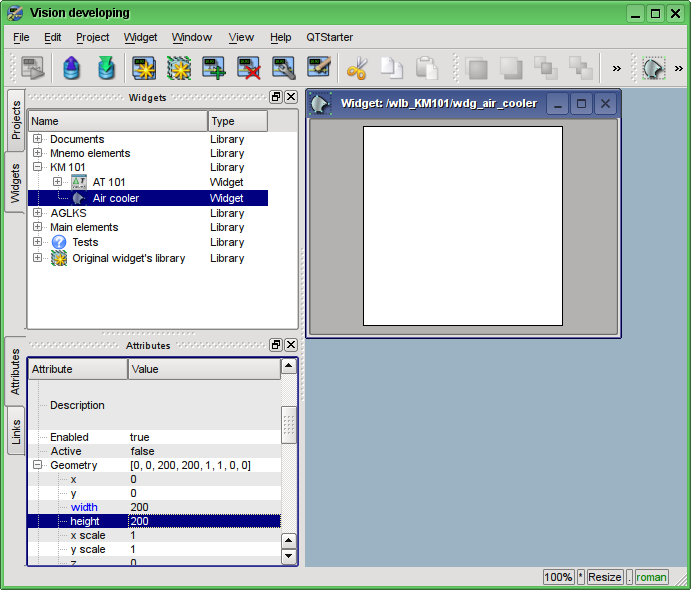
Fig. 5.3.1.2. Specifying the geometric sizes of the widget.
Now let's draw the visual presentation of the widget. This procedure can be done in two ways described below:
- To draw the desired image by the mouse, using the "Line", "Arc", "Bezier curve" and "Fill." The corresponding panel ("Elementary figure tools") appears after entering the edit mode (drawing). To enter this mode it is possible as shown it is shown in Fig. 5.3.1.3, or by double clicking the left mouse button on the body of the widget.
- Manually fill in the "Element's list", by entering the list of required elements and coordinates of points.
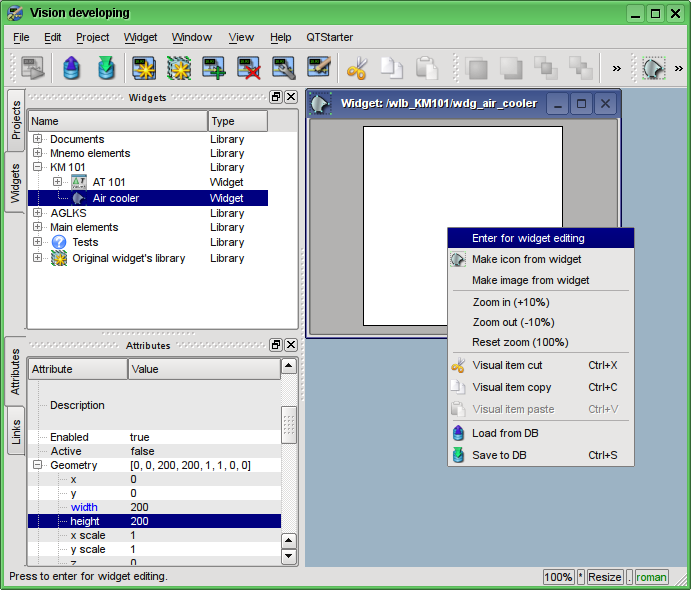
Fig. 5.3.1.3. Entrance to the mode of drawing the widget, based on the primitive "Elementary figures."
In our example, we'll use the second method. To do this in the "Element's list" of the attributes inspector let's enter the list below and press "Ctrl" + "Enter".
line:(20|80):(100|20)
line:(100|20):(180|80)
line:(180|80):(100|140)
line:(100|140):(20|80)
line:(100|20):(100|140)
line:(20|80):(180|80)
line:(50|165):(100|140)
line:(100|140):(150|165)
line:(150|165):(50|165)
fill:(20|80):(100|20):(180|80):(100|140)
fill:(50|165):(100|140):(150|165)
All the points in our case are specified in the static form, since it is not provided the dynamics and change of coordinates in the mode of execution, and all the other parameters are left by default.
As a consequence, our widget will take the form shown in Fig. 5.3.1.4.
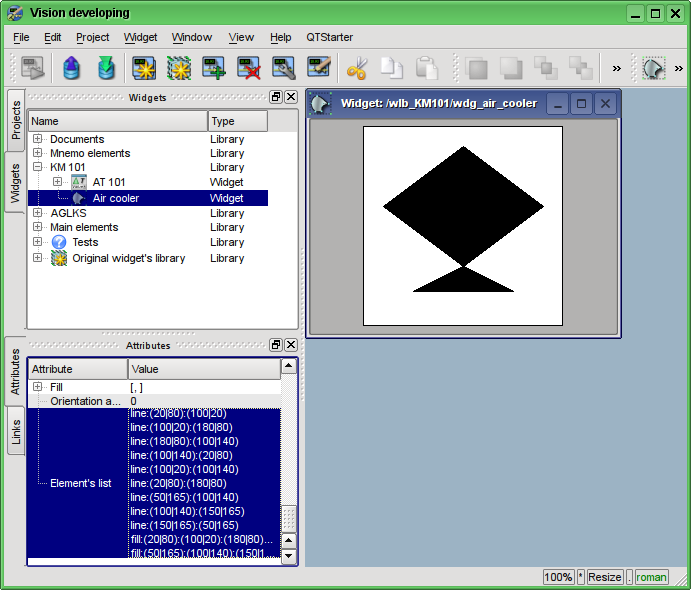
Fig. 5.3.1.4. The image corresponding to the "Element's list" of the widget.
Now let's change the fill color (black, if you do not specify any other (default)) in the tab "Attributes" in the "Fill" section to "lightgrey" (Figure 5.3.1.5). Color can be set as with # ColorKeywords color names and in the format #RRGGBB (#RRGGBB-AAA).
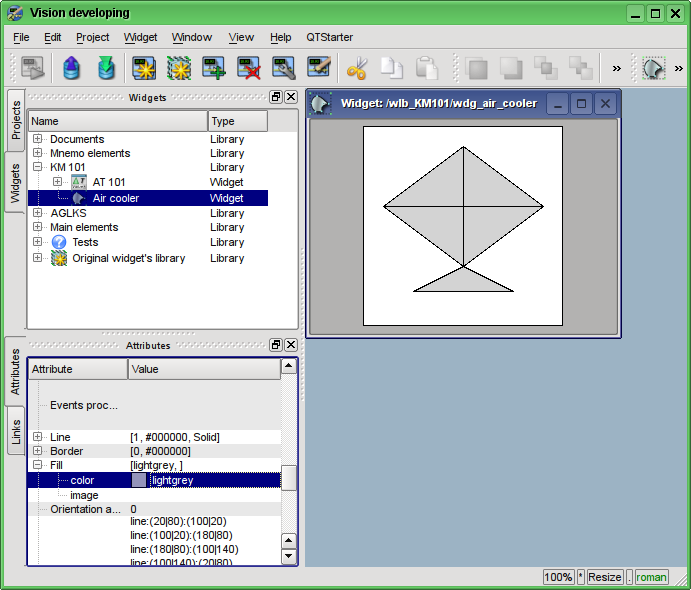
Fig. 5.3.1.5. Change the color of the fill.
Let's create an icon for our widget, which will be visible in the widgets' tree of the library "KM101" (Figure 5.3.1.6).
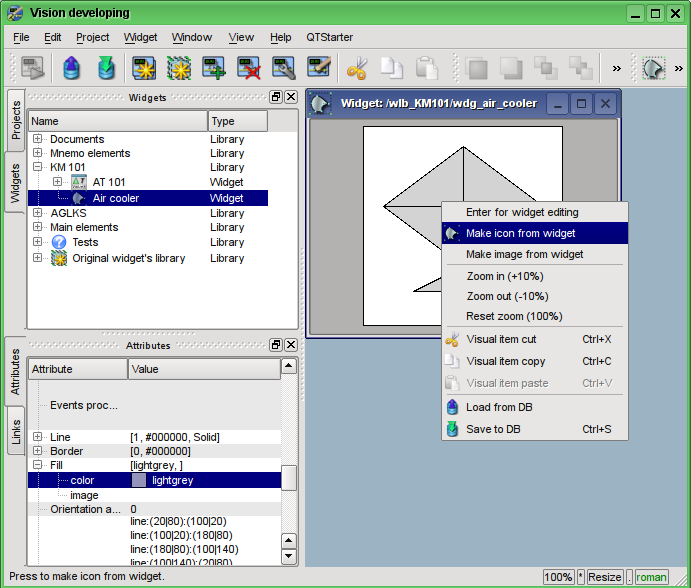
Fig. 5.3.1.6. Creating an icon for the widget.
The process of creating the first widget is completed. We'll now turn to the stage of layout and the creation of the resulting widget.
5.3.2. Creation the final complex widget "Cooler" on the basis of the primitive "Elements box"
The resulting widget we'll create in the "KM 101" library. To do this we must click the right mouse button on the library and select the primitive "Elements box", as it is shown in Figure 5.3.2.1. For a new element let's specify the identifier "elCooler" and the name of "Cooler".
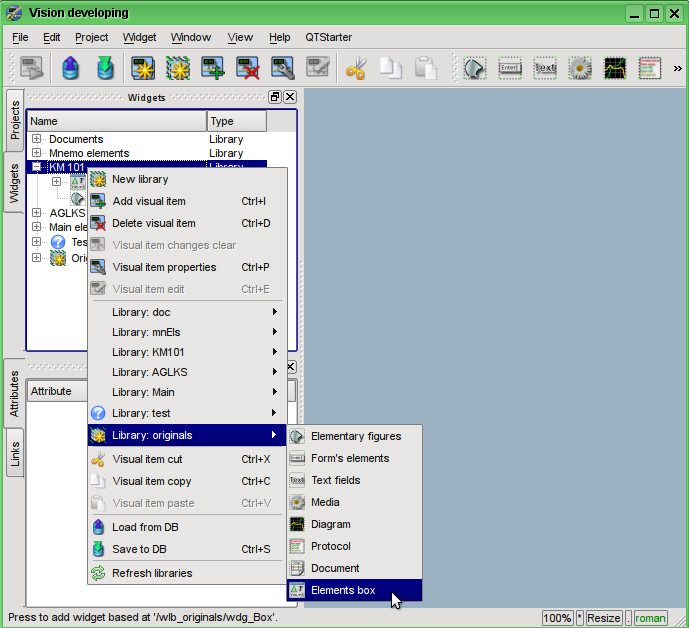
Fig. 5.3.2.1. Adding the widget based on the primitive "Elements box" to the "KM 101" library.
After confirmation, we'll have the new widget object with the name "Cooler". Select it in the widget library "KM 101" and open for editing. Let us now set the width and height of the widget in the 250 and 200 pixels respectively in the "Attributes" tab in the "Geometry" section.
Let's take the previously created element "Air cooler"(air_cooler) and drag him (clicking on it by the left mouse button and moving the cursor of the mouse to the body of the widget, then let the button) to the newly created widget (see Figure 5.3.2.2).
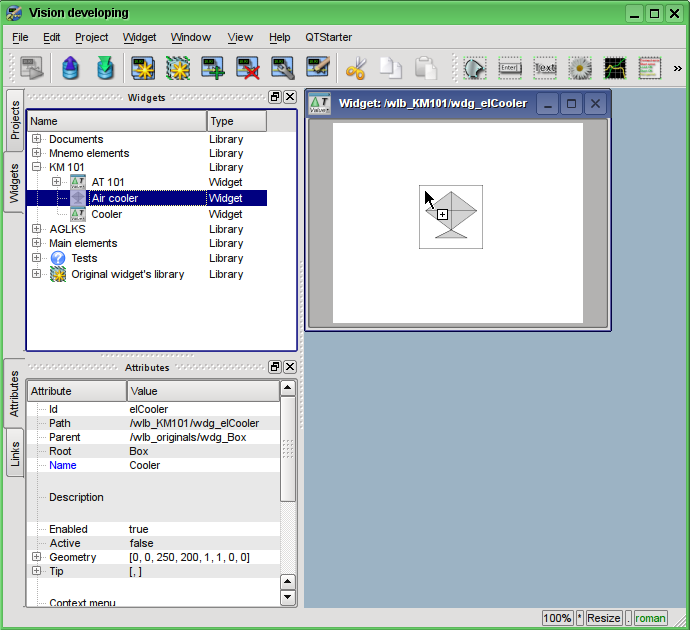
Fig. 5.3.2.2. Drag and Drop of the widget "air_cooler" to the widget-container "elCooler".
The dialogue window will appear to enter the ID and name of the new widget. ID and the name can be set arbitrarily. We will input the "air_cooler" ID and the name we'll leave blank (it will be inherited from parent - the element "air_cooler"). Thus, the newly-created widget inside the container "elCooler" inherits the element - "Air cooler" ("air_cooler"). After confirming the entry of ID and name the widget "Air cooler" ("air_cooler") will be added to our widget container "elCooler" (Figure 5.3.2.3)
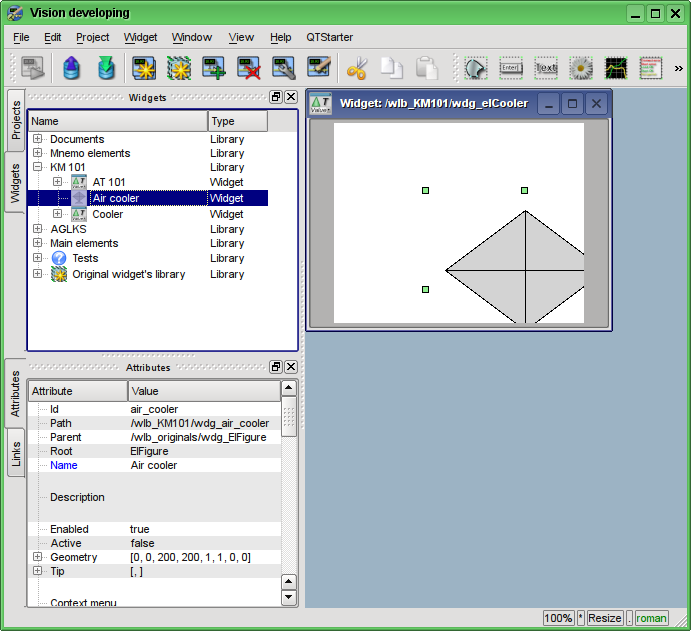
Fig. 5.3.2.3. Adding the inherited widget "air_cooler".
Let's set on the attributes panel of the widget in the "Geometry" section the coordinates "x" and the "y" of upper left corner of the widget to 25 pixels and 0 respectively.
Next, unwind the library "Mnemo elements", find there the "Cooler" element (cooler2) and drag it to the widget-container. This element will dynamically display the productivity of the air cooler. As the result it will appear the dialog window for entering the ID and name of the new widget. Enter the ID "cooler2" and the name again let's leave blank. Thus, the newly-created widget inside the container "elCooler" will inherit the element of the library "Mnemo elements" - "Cooler" ("cooler2"). After confirming the entry of the ID and name the widget "Cooler" ("cooler2") will be added to our widget-container "elCooler". If necessary, raise the widget "cooler2" over the widget "air_cooler" within the widget-container "elCooler" from the toolbar below. Let's specify in the "Attributes" tab in the "Geometry" section the coordinates "x" and "y" of the upper left corner of the widget "Cooler" to the 75 and 30 pixels respectively. Change in the inherited widget "Cooler" alpha channel (transparency) of the fill color. To do this in the "Attributes" tab in the fields "Color1" and "Color2" we'll change the colors by the adding "-200" to them, where the 200 - the value of transparency ("0" - fully transparent, while "255" - the fully opaque), as it is shown in Fig. 5.3.2.4.
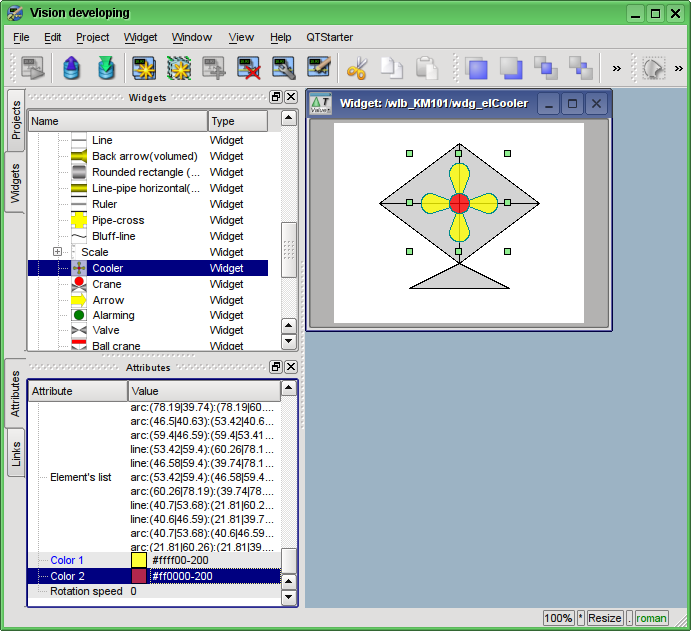
Fig. 5.3.2.4. Change the fill colors transparency in the inherited widget "cooler2".
Now let's add to the widget-container "elCooler" two text fields based on the primitive "Text", in order to display the input and output temperatures of the flow. To do this in the library "KM 101" we'll select the widget "Cooler" and then click on the visual items toolbar on the icon of the primitive "Text", as it is shown in Figure 5.3.2.5.
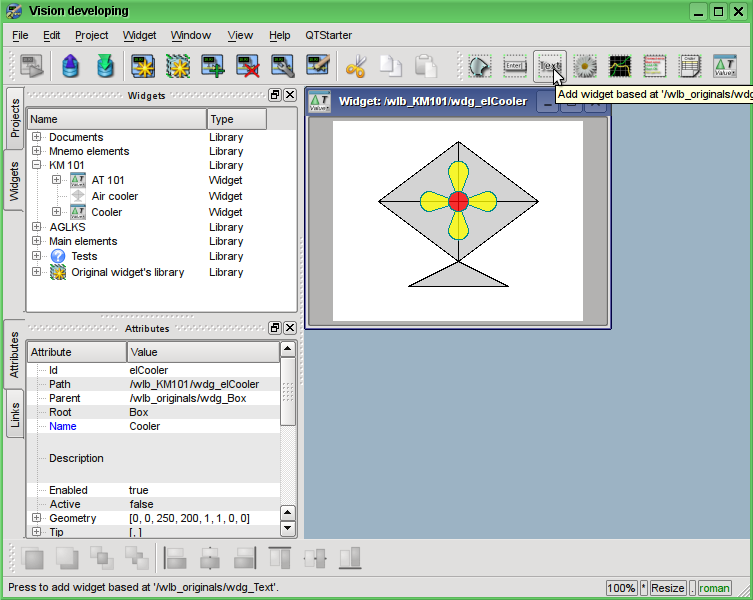
Fig. 5.3.2.5. Adding the new element to the container, based on the primitive "Text."
The dialog of the ID and name of the newly created element entering will appear. Enter the ID "Ti" for the first text field, and the name field we'll leave blank. Let's define the geometric sizes and the coordinates of the upper-left corner of the widget, as it is shown in Fig. 5.3.2.6
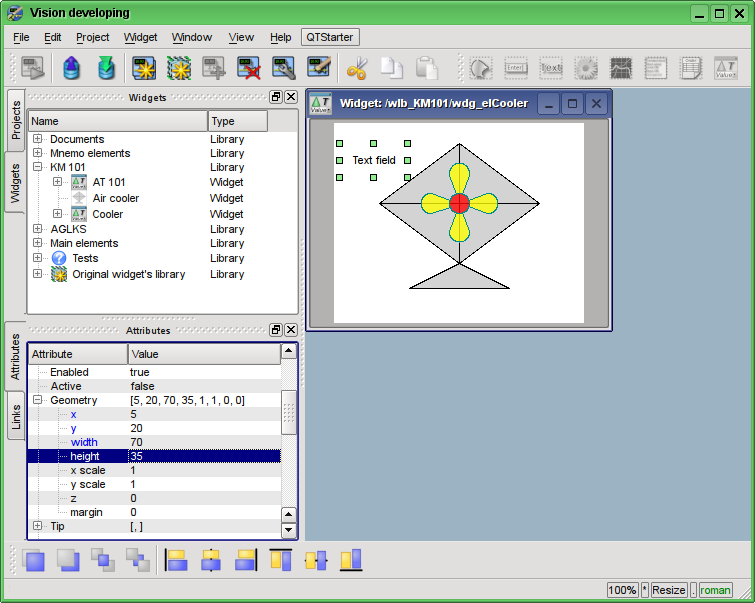
Fig. 5.3.2.6. Specifying the geometry of the widget "Ti".
Let's change the size of the font for this element and make it bold (Fig. 5.3.2.7). Note that the modified field in the inherited widgets are highlighted in blue for easy tracking of changes and their subsequent "cleaning" (rollback) with right mouse button click on the changed attribute.
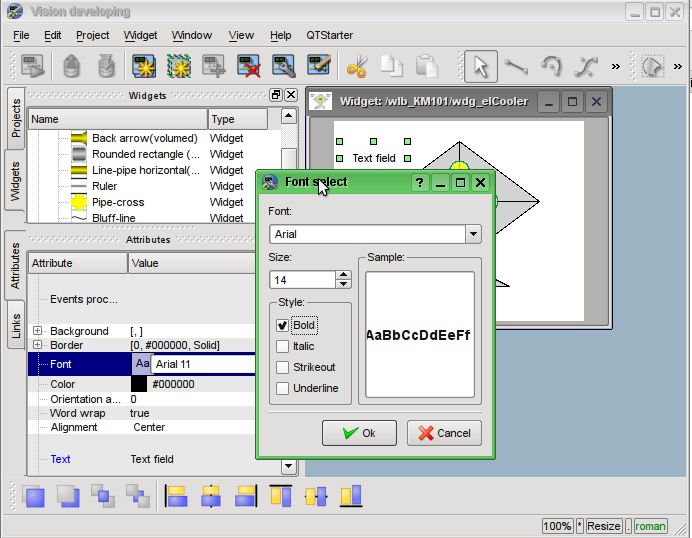
Fig. 5.3.2.7. Changing the font size for the widget "Ti".
Now we'll change the field "Text" of the "Ti" widget, indicating the presence of the argument "%1" in it, in which it will be subsequently transferred the real value of the input temperature (Fig. 5.3.2.8).
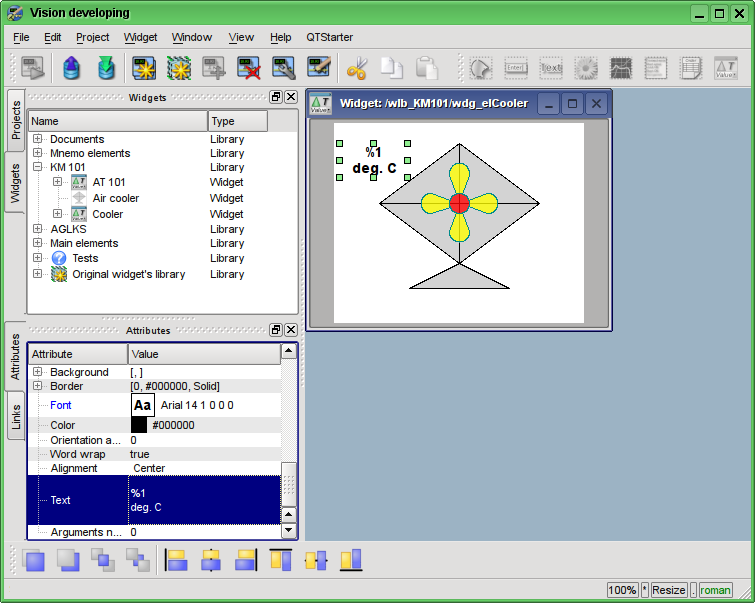
Fig. 5.3.2.8. Changing the field "Text" and an indication of the argument's presence in it for the widget "Ti".
Next in the list of attributes of the "Ti" widget in the section "Number of arguments" let's enter "1" and configure the argument (Figure 5.3.2.9). The number "300.25" is entered only the with the purpose of clarity, in the execution mode it will be changed by the real value of the input temperature.
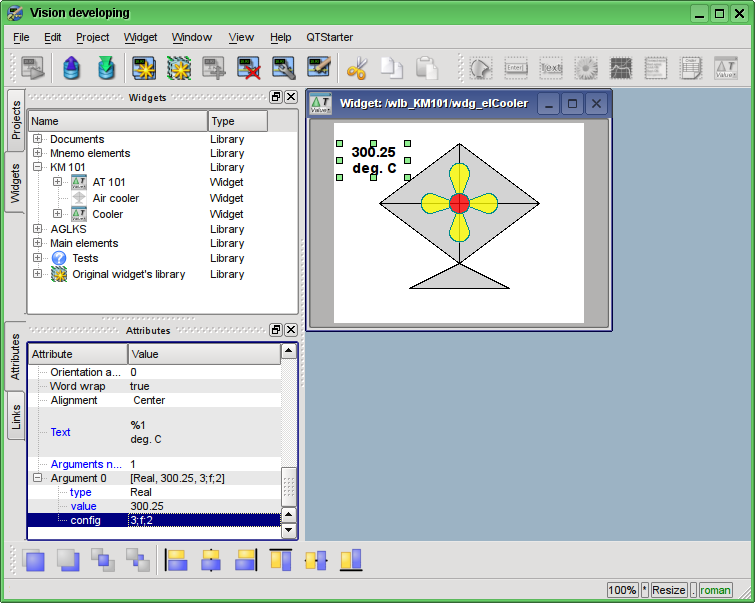
Fig. 5.3.2.9. The configuration of the argument for the "Ti" widget.
Now we'll copy the "Ti" widget in order to create an equivalent widget "To" (output temperature), as it is shown in Figure 5.3.2.10.
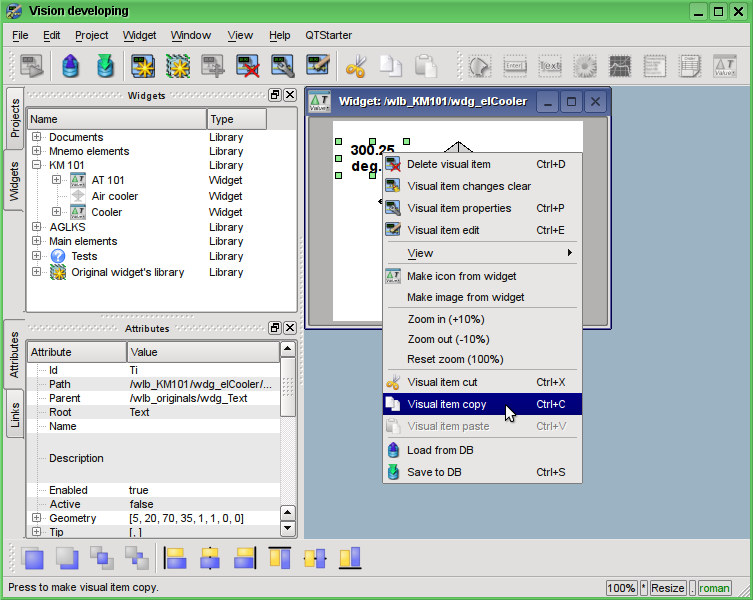
Fig. 5.3.2.10. Copying of the "Ti" widget.
Let's paste the widget in the widget-container "Cooler" in the library "KM 101" (Fig. 5.3.2.11). In the dialog of the ID and the name entering for the newly created widget in the field "ID" we'll write "To", and the name field we'll leave blank.
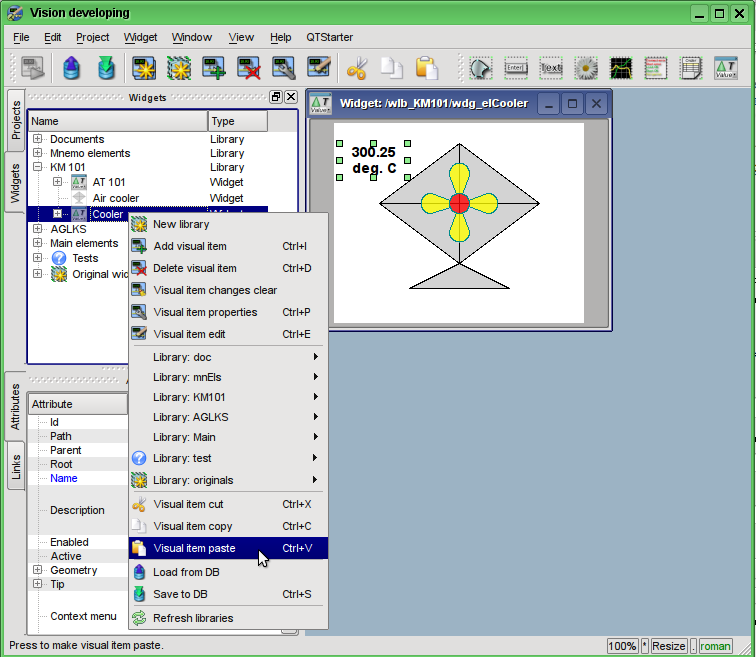
Fig. 5.3.2.11. Paste the copied widget to the widget-container "Cooler" of the library "KM 101".
Let's change the geometry of the "To" widget, as it is shown in Fig. 5.3.2.12.
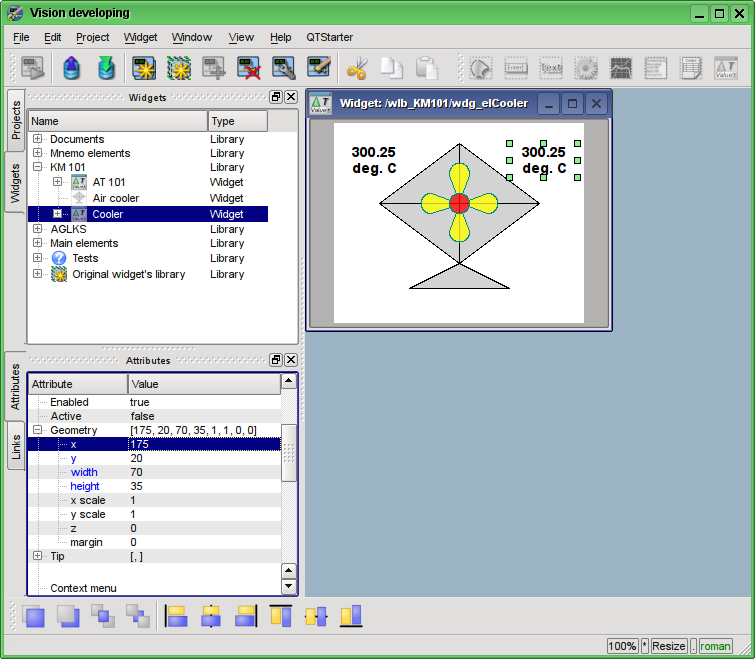
Fig. 5.3.2.12. Changing the geometry of the "To" widget.
Now let's add the widget based on the primitive "Form's elements", which will be used as the ComboBox to select the productivity values of the cooler. The identifier will be "cw", and the "Name" field we'll leave blank. (Figure 5.3.2.13)
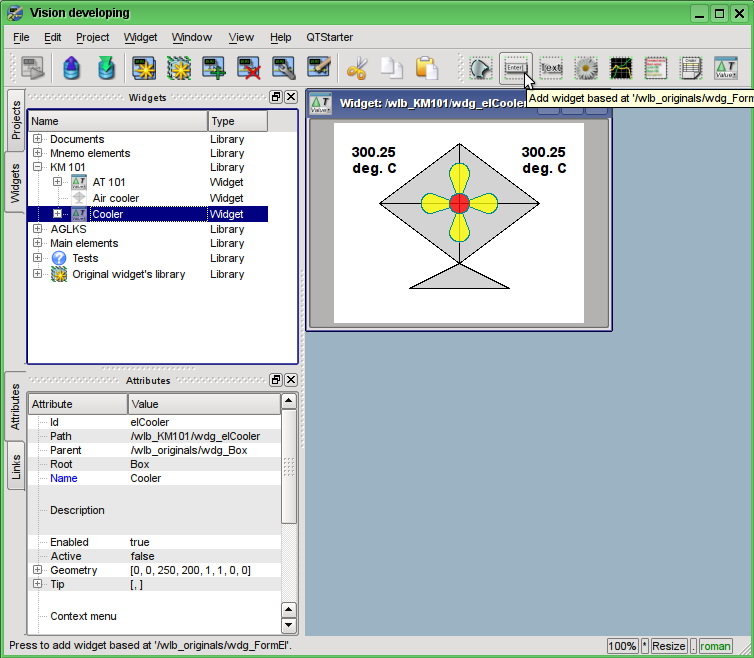
Fig. 5.3.2.13. Adding the widget based on the primitive "Form's elements".
Let's set the parameters of the "Geometry" section of the "Attributes" tab for the newly added widget: coordinates "x", "y" of the upper left corner, width and height of 60, 158, 60 and 40, respectively. Let's change the "Elemetnt type" to the Combo Box, as it is shown in Fig. 5.3.2.14
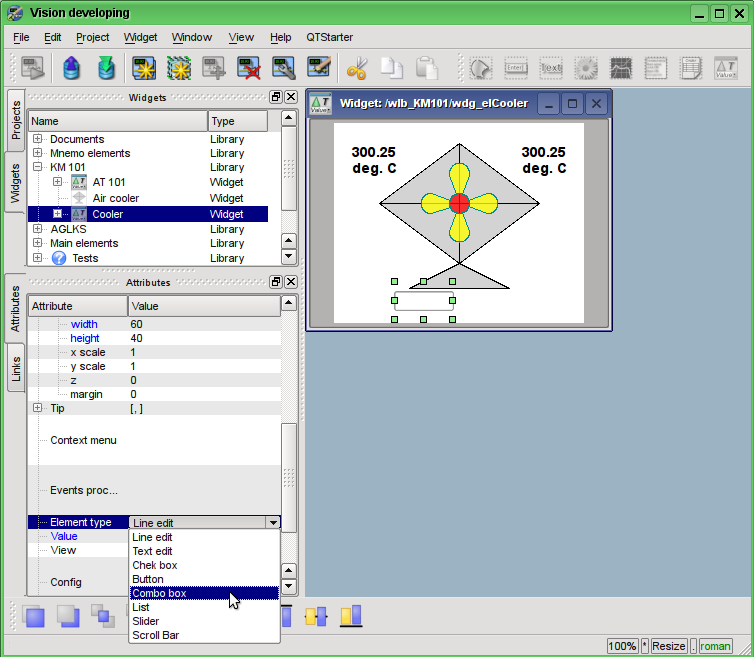
Fig. 5.3.2.14. Change the "Geometry" and "Element type" for the newly created widget.
Let's fill the fields: "Value", "Items" and "Font", as it is shown in Fig. 5.3.2.15. In addition, it is important to raise the combobox above all elements and make it active. To activate the combo box widget, you need to set the appropriate property for it.
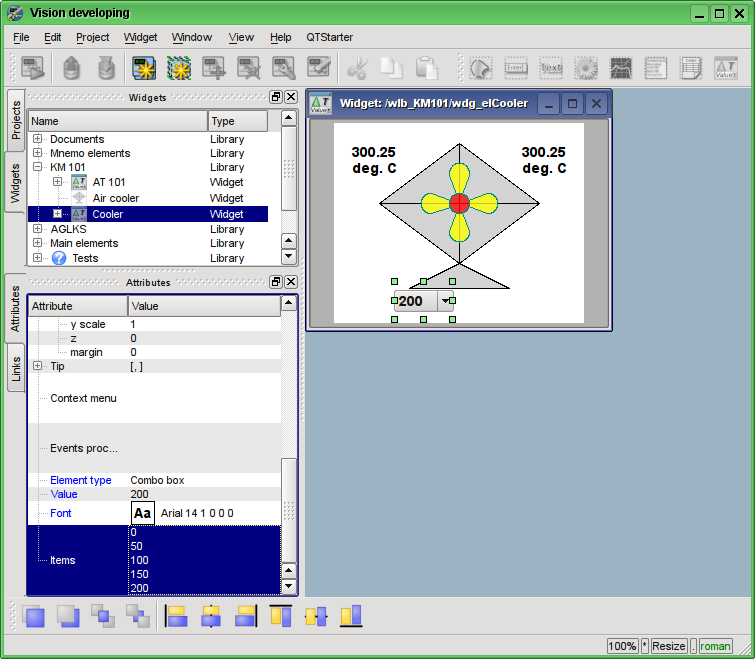
Fig. 5.3.2.15. Filling the parameters of the "cw" ComboBox.
To display the cooler productivity dimensions we'll add the widget on the basis of the "Text" primitive. Let's make the same procedure as for the "Ti" widget. The identifier of the newly created widget will be "dimension", the geometry: coordinates of the upper-left corner "x", "y" will be set to the 125 and 168, respectively, while width and height - at 60 and 20, respectively. Let's change the font size to "14 bold", and in the field "Text" let's type "rpm", that will be our dimension (Fig. 5.3.2.16).
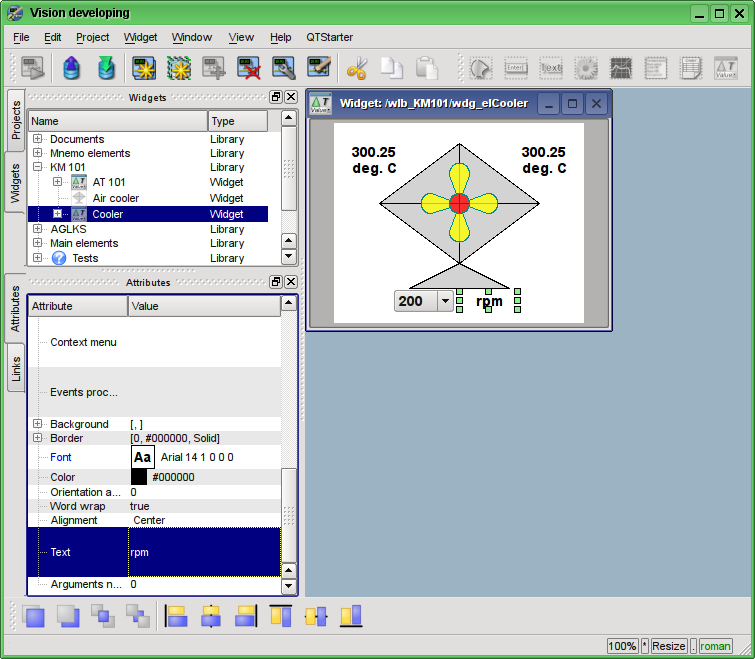
Fig. 5.3.2.16. Adding the "dimension" widget, based on the primitive "Text" and changing of its settings.
To add the processing logics for the widget "Cooler" (elCooler) we'll open the dialog of the properties editing of the visual element and select the "Process" tab. On this tab we can see the tree of widget's attributes and the field for the program code for the attributes' processing. To solve our task, we must add three attributes: Ti, To, Cw (Fig. 5.3.2.17). To add an attribute you should unwind the root element ".", select any element inside the root one and click "Add attribute" button below.
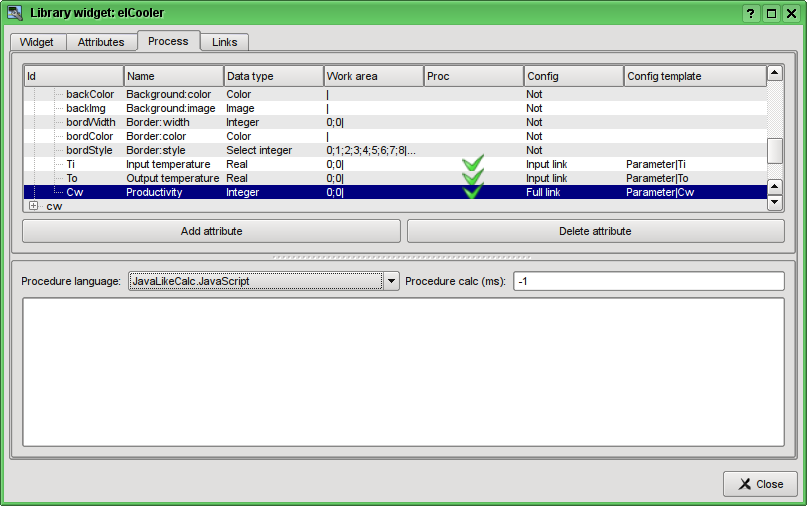
Fig. 5.3.2.17. Adding the three attributes for the element "elCooler" of the library "KM 101".
Further we'll enable the processing of "value" attribute of combo box "cw", as it is shown in Fig. 5.3.2.18. Similarly, enable the processing of the "arg0val" attribute for Ti and To, as well as the "speed" attribute of the "cooler2" element.
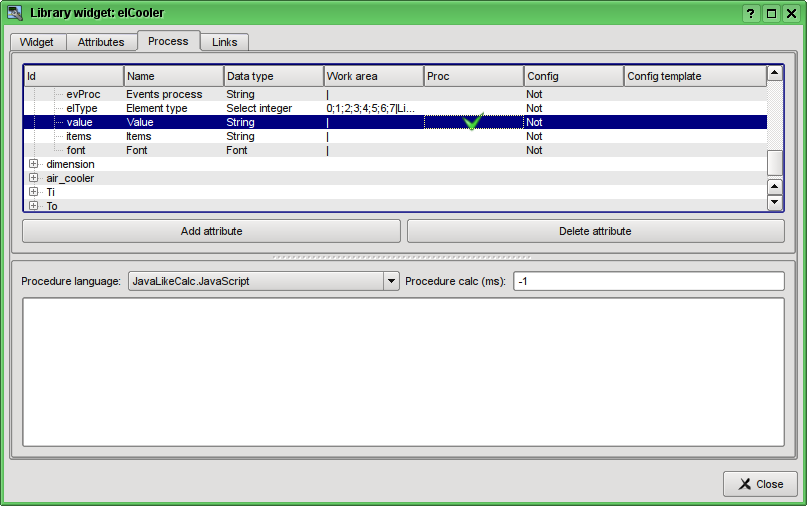
Fig. 5.3.2.18. The enabling of the processing of the "value" attribute of the combo box "cw".
At the end let's set the user programming language for the program to the "JavaLikeCalc.JavaScript" and write the program to process this widget:
Ti_arg0val = Ti;
To_arg0val = To;

ev_wrk=ev_rez="";
off=0;
while(true)
{
  ev_wrk=Special.FLibSYS.strParse(event,0,"\n",off);
  if( ev_wrk == "" ) break;
  if( ev_wrk == "ws_CombChange:/cw" ) Cw = cw_value;
  else ev_rez+= ev_wrk+"\n";
}
cw_value = Cw;
cooler2_speed = Cw/5;
The resulting view of the Process tab of the "elCooler" widget of the "KM 101" library will have the form shown in Fig. 5.3.2.19.
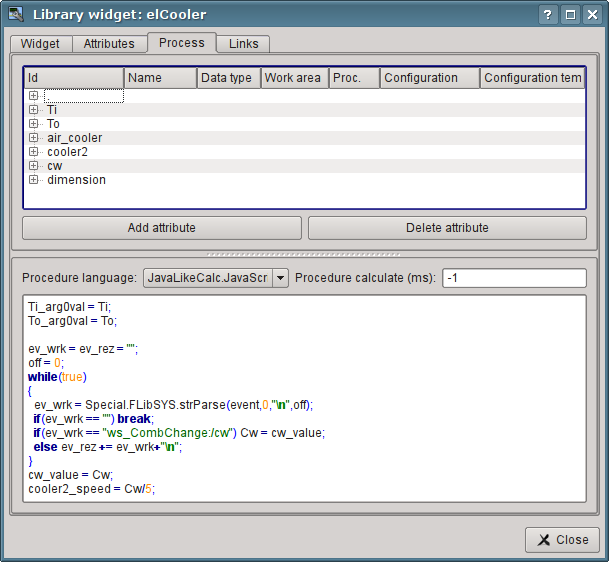
Fig. 5.3.2.19. The resulting view of the Process tab of the "elCooler" widget of the "KM 101" library.
Let's close the dialogue of the properties of visual element editing, create an icon on the basis of our element, close the inner editing window and save it all.
The development of the complex element is finished.
5.3.3. Adding the complex element to the mnemonic scheme
To test the operability and evaluate the results of our efforts let's add the created widget to the mnemonic scheme, developed in chapter 5.2. We'll repeat this operation for two coolers "AT101_1" and "AT101_2".
To do this we'll open the frame of mnemonic scheme "AT 101" for editing. Then grab by the "mouse" our complex element and drag to mnemonic scheme, where we drop it in the desired position. In the dialog we'll enter the identifiers "AT101_1" and "AT101_2" respectively. The field "Name" is blank. Added element we'll place the way we desire. After such manipulations, we should get the mnemonic scheme with the view, similar to Fig.5.3.3.1.
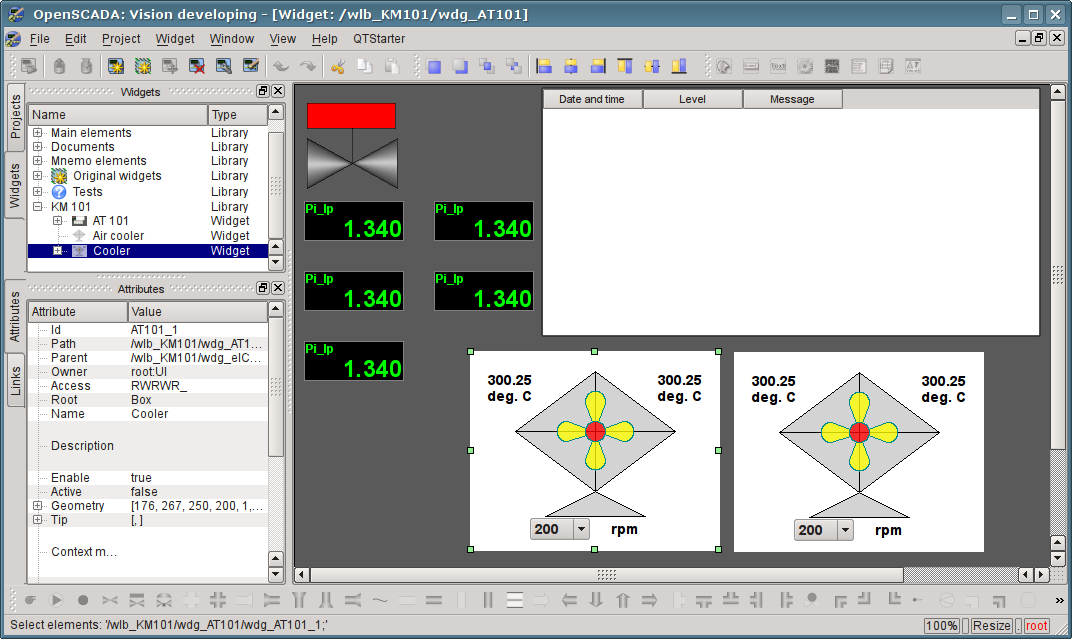
Fig. 5.3.3.1. The view of the mnemonic scheme with complex elements.
Let's save the new mnemonic scheme and close its window. Then move on to the project and open this mnemonic scheme in the project's tree "Signal groups (template)"->"Root page (SO)"->"Group 1"->"Mnemos"->"AT 101". As you can see, our new elements are appeared here automatically. And we only need to connect the links to the new elements. To do this we'll open the dialog of editing the properties of the mnemonic scheme on the "Links" tab (Fig.5.3.3.2). On this tab, we can see the tree with the elements of "AT101_1" and "AT101_2". Unwinding any of the elements, we'll see the "Parameter" branch just with the "Ti", "To" and "Cw" attributes, thus we can simply specify the address of the parameter "prm:/LogicLev/KM101/AT101_1" in the "Parameter" field and attributes will be placed automatically.
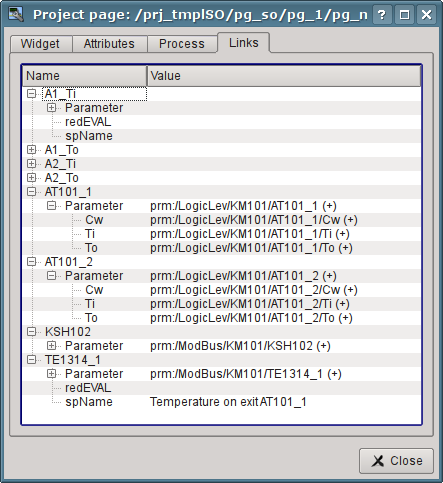
Fig. 5.3.3.2. The "Links" tab of the dialog of editing the properties of the mnemonic scheme.
Let's save our mnemonic scheme and verify what we have. To do this, close the dialog of the properties and run the "Signal groups (template)" for execution. Then switch to the second mnemonic scheme with the help of paging buttons. With error-free configuration, we should see something similar to that shown in Fig.5.3.3.3.
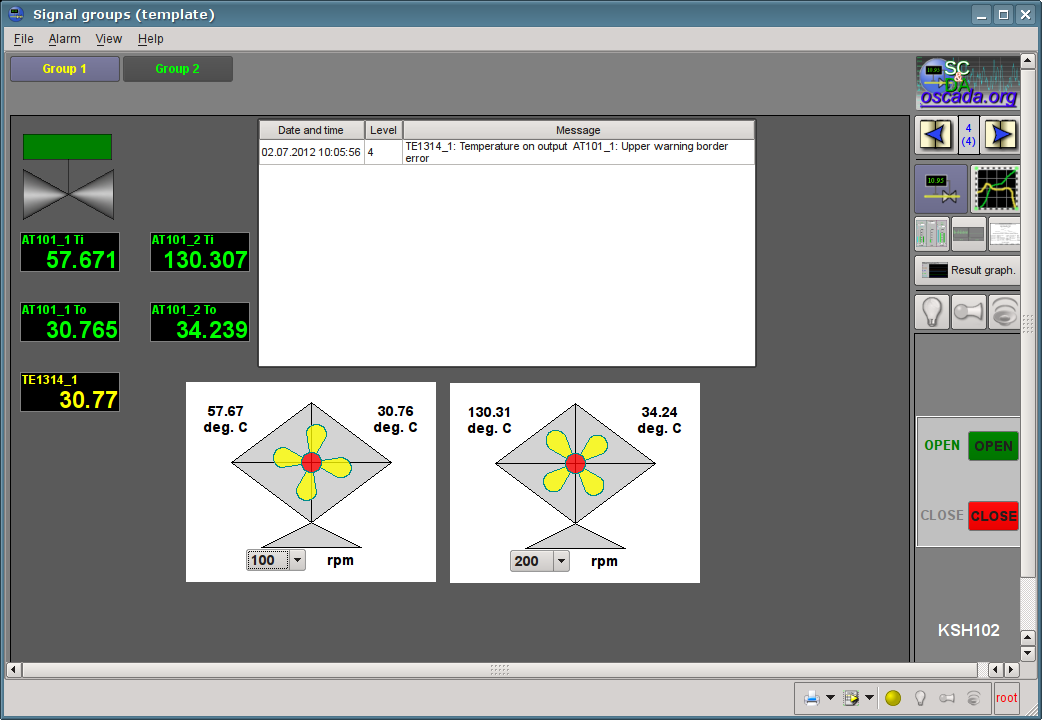
Fig. 5.3.3.3. The resulting mnemonic scheme.
On this mnemonic scheme through our complex elements we can not only observe but also to control the productivity of coolers, simply by changing the value in the combo box. Changing the productivity, we can see the changes in temperature. History of changes we can see on the created in the chapter 5.1 the group of graphs.
6. Recipes
This section is intended to provide the descriptions of recipes for solving the common problems and tasks of the user. Recipes to be placed in this section may be offered by the users.
6.1. Transfer of OpenSCADA configurations from one project to another
It is often needed to transfer configuration from one OpenSCADA project to another. And, more often it is necessary to make a partial transfer, for example, the transfer of certain developments that could be useful in the new project.
Generally, it should be noted that any developments with the slightest hint, and the prospect of re-use should be standardized and maintained in the separate, own libraries and databases. It is not recommended to change the default configurations and elements of the standard libraries, and save your own, new libraries and elements in the databases of standard libraries. This will subsequently allow you to painlessly update the standard libraries, and to simply use the developments of your previous projects.
Easy transfer of the DB with libraries and configuration
If you took into account the above recommendations and all of your uniform developments are contained in the separate database, then the entire transfer process will be to copy the database and connect it to a new project.
The procedure of DB copying is different for different types of databases and you should read about it in the DB documentation. In the OpenSCADA distros it is commonly used the SQLite database, as separate files *.db. Ñopying of the SQLite database, respectively, is the simple copying of the the required database file from the database directory of the old project to the database directory of the new one.
Connection is made by creating a new database object in the module of the required DB type of the database subsystem and its subsequent configuration ( in details ). After the creation, configuration, and the enabling of database you can immediately download the configuration from it by clicking the "Load system from this DB" on the form of the database object.
Separation of the desired configuration
If the desired configuration is contained in a common database or in the database of standard libraries, you need to move it to the separate database. You can move the configuration either to a separate database with your libraries or to the export database. Export database, unlike a library one, only serves to transfer the configuration and will subsequently be deleted. In any case, you must create a new database for the desired database type, like the connection procedure above. To transfer you should use a database type that you plan to use in the new project. Usually, it is better to use the SQLite database type for the transfer, because of the simple copying procedure for it. However, if you use a network database, the procedure may change to the simple connection of the library or export database to a new project.
Next, you must separate the configuration in unifying or export libraries, if it can not be directly stored in a database. For example, certain templates of parameters or parameters of the data acquisition controllers, visual elements of the widgets libraries etc. You can separate by creating a library of export or by the unification of the element, such as a library of templates, or the controller of the data acquisition parameters, library of widgets etc. For the newly created library as the database should be specified the previously created unifying or export database. Further you should copy the necessary elements from the original library to unifying/export via a standard copy function. After copying the unifying/export library must be saved.
If it is necessary to transfer the configuration element with a separate DB property or the entire libraries the operation of creating an intermediate library and the further copying can be omitted. It is enough in the DB field to specify the previously created a unifying or export database and save the element.
Further actions, namely the simple transfer of the database, are implemented in accordance with the previous section.
When you transfer the configuration by exporting it is necessary to implement the reverse process of copying from the export libraries to the local libraries of a new project and deleting of the export database.
Low-level copy of the DB contents
To transfer you can make selectively copying of the database tables with the configuration by selecting the tables' objects in the database object, the copy command, the selecting of the object of a new database and insert command ( in details ). However, it is necessary to know the structure of the database, about which you can read by this link.
Conclusion
This document describes in detail the basic process of creating the user interface elements, with preparation and configuration of the data source. In general, you can quickly get an idea of the work with the OpenSCADA system, and purposefully look for solutions of associated problems.
Links