

The module <QTCfg> of subsystems "User Interfaces"
| Module: | QTCfg |
| Name: | The system configurator (QT) |
| Type: | User Interfaces |
| Source: | ui_QTCfg.so |
| Version: | 1.9.0 |
| Author: | Roman Savochenko |
| Translated: | Maxim Lysenko |
| Description: | Provides the QT-based configurator of the OpenSCADA system. |
| License: | GPL |
Introduction
The <QTCfg> module provides the configurator of the OpenSCADA system. Configurator is based on multi-platform library of the graphical user interface (GUI) of the firm TrollTech - QT <http://www.trolltech.com/qt/>.
At the core if the module lies the management interface language of the OpenSCADA system, and thus provides a uniform configuration interface. Update of the module may be required only in the case of updating the specification of the language of the management interface.
Lets examine the working window of the configurator in Fig. 1.
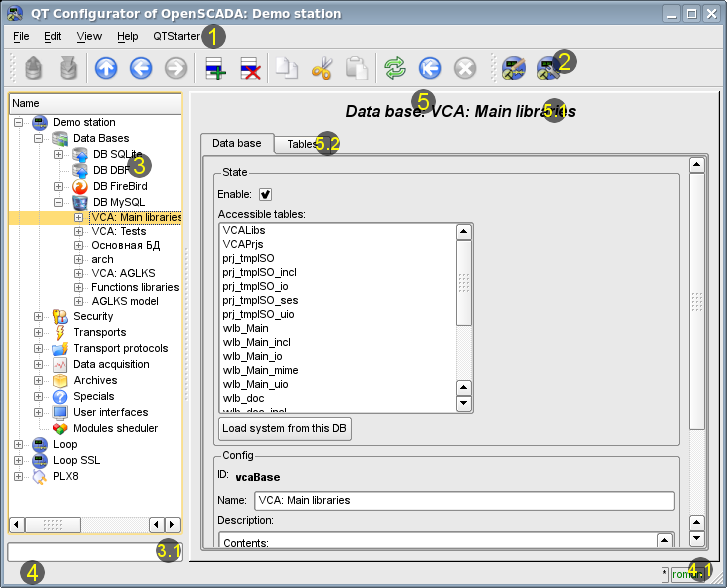
Fig.1. Working window of the configurator
Operating window of the configurator consists of the following parts:
1 - Menu - contains a drop-down configurator menu.
2 - Toolbar - contains buttons of quickly control.
3 - Navigator - is intended for direct navigation of the control tree.
4 - Status line - indicating the status of the configurator.
5 - Workplace field. It is divided into parts:
5.2 - Tabulator of the working areas - the root page (management areas) of the node are placed into the tabulator. The management areas of the following levels are placed on the information panel.
Menu of the configurator contains the following items:
- File - the group of general commands:
- Load from DB - downloads the selected object or branch of object from the database.
- Save to DB - save the selected object or branch of object to the database.
- Close - close the configurator window.
- Quit - termination of the OpenSCADA system.
- Edit - editing commands:
- Add - add a new object to the container.
- Delete - delete the selected object.
- Copy item - copy the selected object.
- Cut item - cut of the selected object. The original object is removed after paste.
- Paste item - paste of the copied or cut item.
- View - navigation and control of the view commands:
- Up - climb up the tree.
- Previous - open the previous page.
- Next - open the following page.
- Refresh - refresh the current page.
- Start - run periodically update of the contents of the current page with an interval of one second.
- Stop - stop periodically update od the contents of the current page with an interval of one second.
- Help - assistance call commands:
- About - information about the module and the OpenSCADA system.
- About Qt - information about the Qt library.
- What's this - the command of the request the information about the elements of the interface.
The toolbar contains the following management buttons (from left to right):
- Load from DB - downloads the selected object or branch of object from the database.
- Save to DB - save the selected object or branch of object to the database.
- Up - climb up the tree.
- Previous - open the previous page.
- Next - open the following page.
- Add - add a new object to the container.
- Delete - delete the selected object.
- Copy item - copy the selected object.
- Cut item - cut of the selected object. The original object is removed after paste.
- Paste item - paste of the copied or cut item.
- Refresh - refresh the current page.
- Start - run periodically update of the contents of the current page with an interval of one second.
- Stop - stop periodically update od the contents of the current page with an interval of one second.
- Call buttons of the modules of the graphical interface based on the QT library
In the navigation tree the context menu of following contents is supported:
- Load from DB - downloads the selected object or branch of object from the database.
- Save to DB - save the selected object or branch of object to the database.
- Add - add a new object to the container.
- Delete - delete the selected object.
- Copy item - copy the selected object.
- Cut item - cut of the selected object. The original object is removed after paste.
- Paste item - paste of the copied or cut item.
- Refresh the elements of a tree - Performs the refreshing of the navigation tree contents.
The control tools are divided into basic, commands, lists, tables and images. All items are displayed in the sequence strictly appropriate to their location in the description of language of management interface.
1. Configuration
To adjust your own behavior in the not obvious situations module provides the ability to customize individual settings through the management interface of the OpenSCADA (Fig. 2). These parameters are:
- Initial path to the configurator - allows to determine what page to open when you start the configurator.
- Initial user of the configurator - points on behalf of the which user to open configuration without requiring a password.
- The link to the configuration page of the external OpenSCADA stations used to enable the remote configuration.
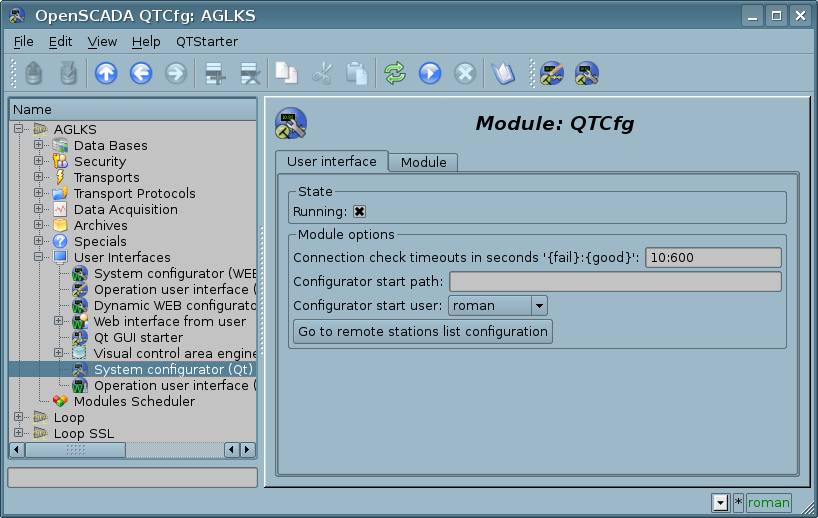
Fig.2. The configuration page of the configurator.
2. Basic elements
Into the number of the basic elements are included: information elements, the field to input values, the elements of combo box, flags. In the case of absence of an element name, the basic element connects to the previous basic element. Examples of basic elements with the connection is shown in Fig.3.
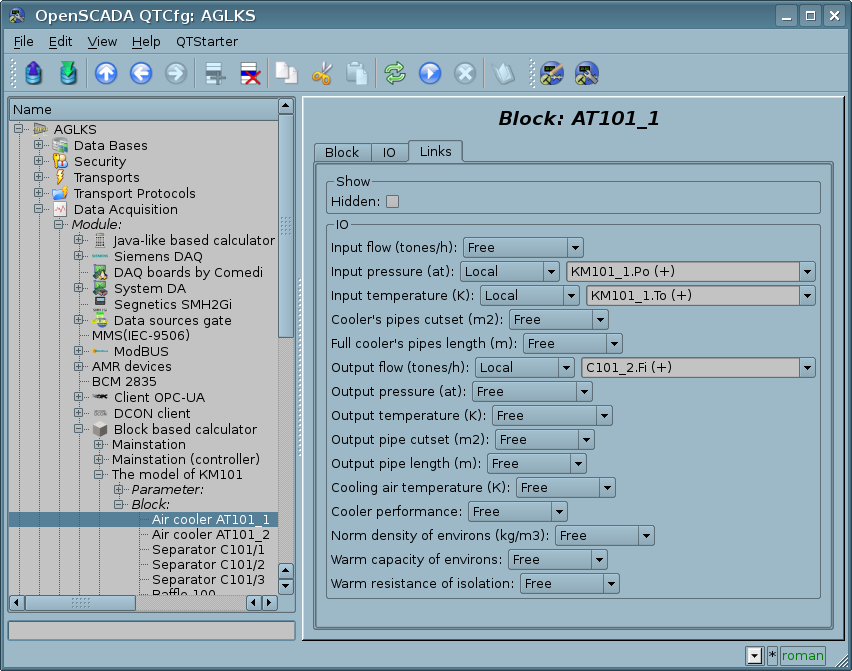
Fig.3. Connection of the basic elements.
3. Commands
Commands are the elements for the transfer of the certain instructions of the action to the node and for the organization of the links on the page. Commands may contain parameters. The parameters are formed from the basic elements. Example of the commands with the parameters is shown in Fig.4.
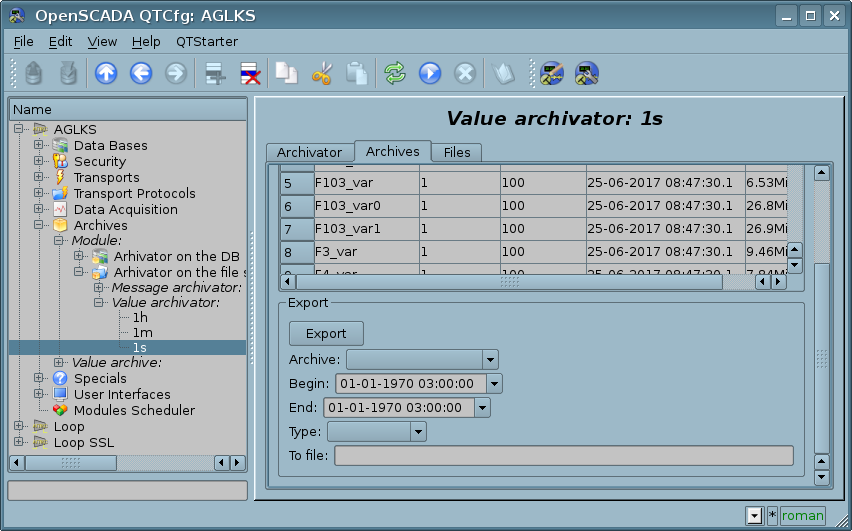
Fig.4. Command.
4. Lists
Lists contain a group of basic elements of the same type. Operations under the elements are accessible via the context menu of the list. Through the elements of the list can be performed the moving operations to other pages. The transition is implemented by double-clicking of the mouse on an element of the list. Lists can be indexed. An example of the list is shown in Fig. 5.
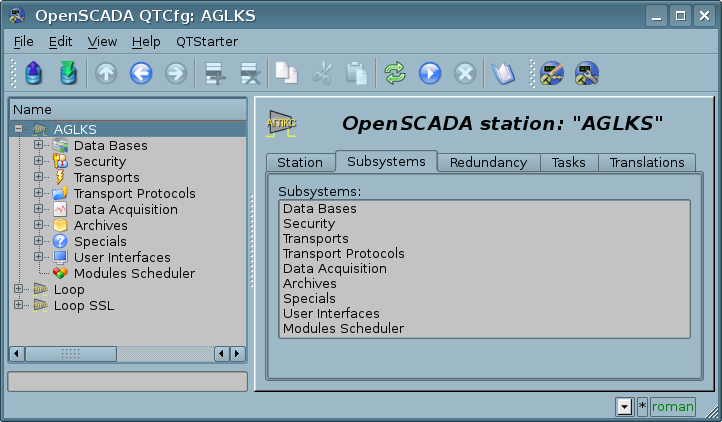
Fig.5. The list.
5. Tables
The tables contain values of the basic elements. Type of the basic element is an individual for each column. Example of the table is given in Fig. 6. Operations on the structure of the table for editable tables are accessible through the context menu. Editing of the table is done by double-clicking on the desired cell.
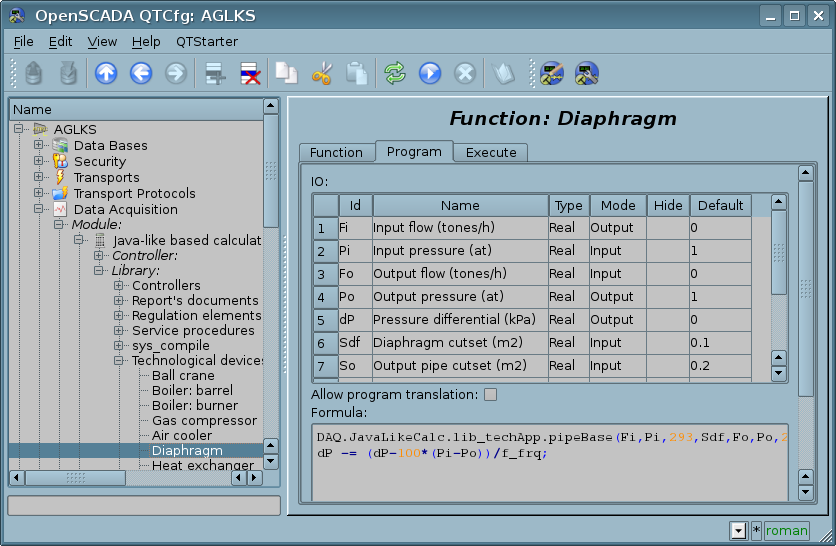
Fig.6. Table.
6. Images
The images are designed to transmit graphic information into the configurators. Example of the image is shown in Fig. 7.
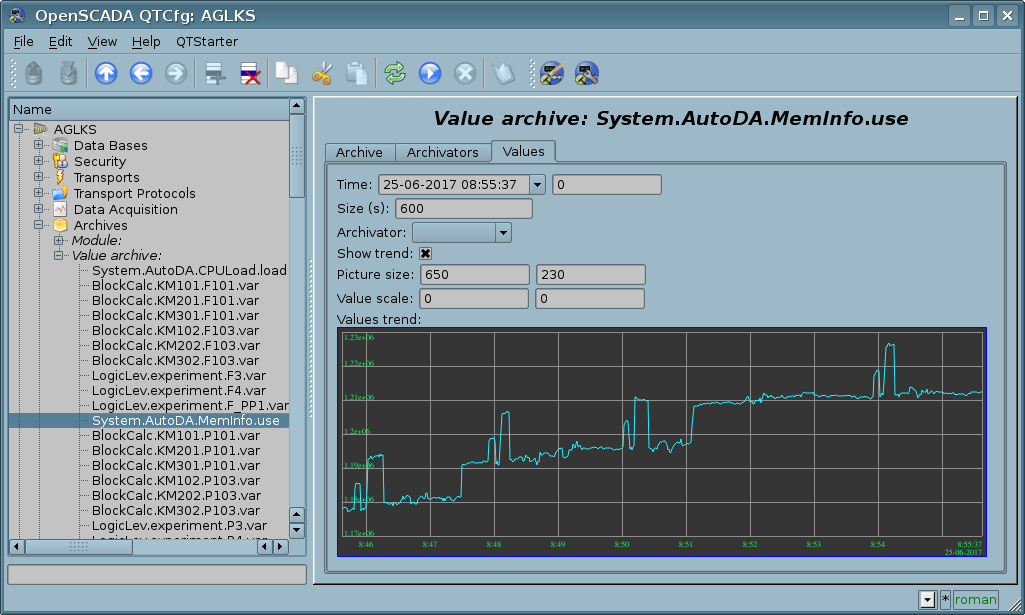
Fig.7. Image.
Links